What Can ‘Make Me a UI’ Build? A Roblox Rod Shop with WEPPY
Back to boardWe compared two screens made with the same GPT-6.2 Sol AI model, then refined the shop with a concept prompt, a sketch, and a set of item images.
Make me a UI.
I tried that one-line request twice in Coral Cove, a cartoon fishing game. On the left, Sol built the UI on its own using standard Roblox tools. On the right, WEPPY UI Studio used the same Sol model to build it. Both runs started with the same harbor, rod names, prices, and balance. Neither had a reference sketch or an image of a fishing rod.
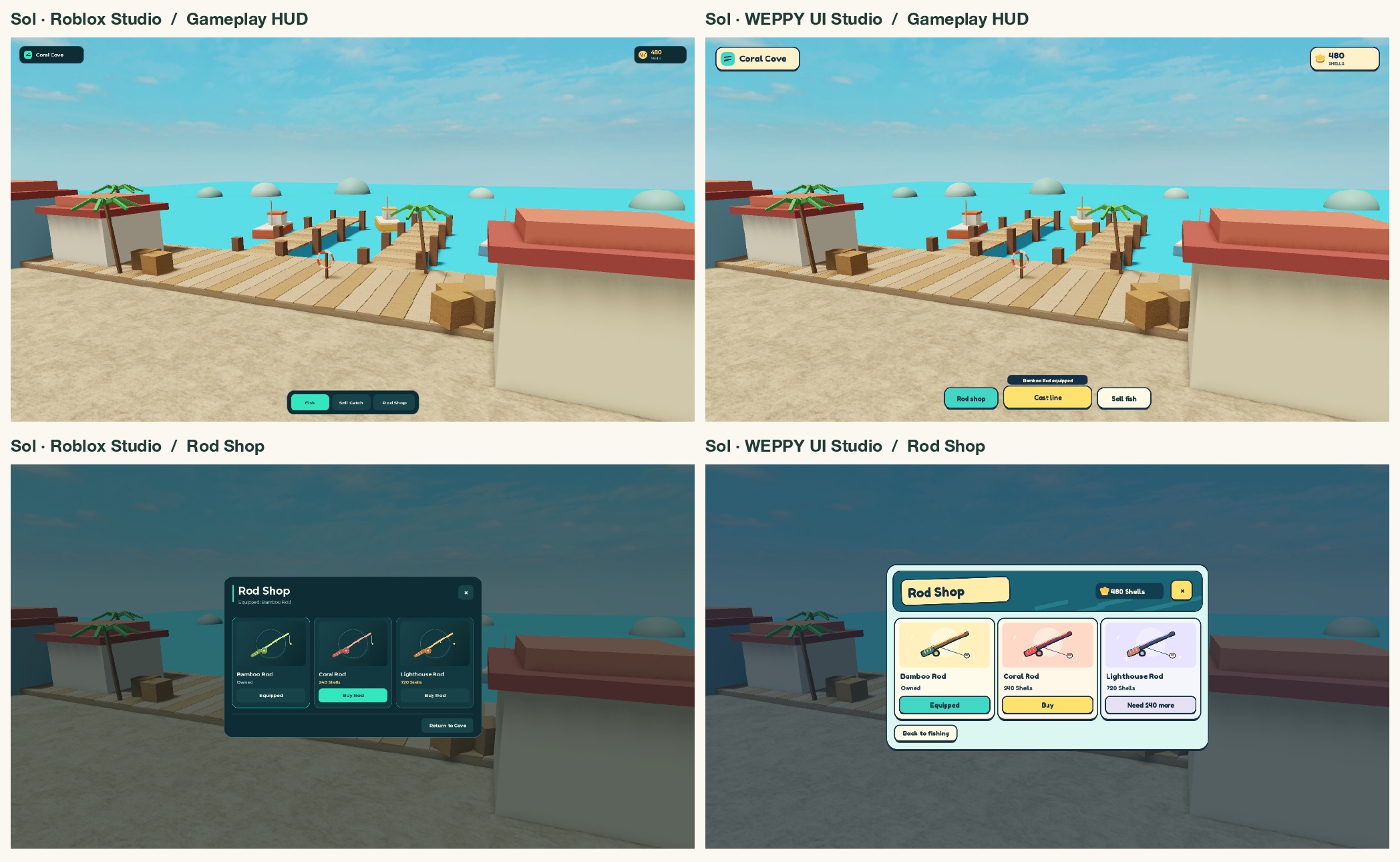
Look at the shops in the bottom row. Sol grouped the three rods in a compact, dark panel. WEPPY gave them more room and set each rod against a light display card. My eye goes to the rod first, then down to its name and price. The rounded lettering and bold outlines also feel at home on this colorful pier.
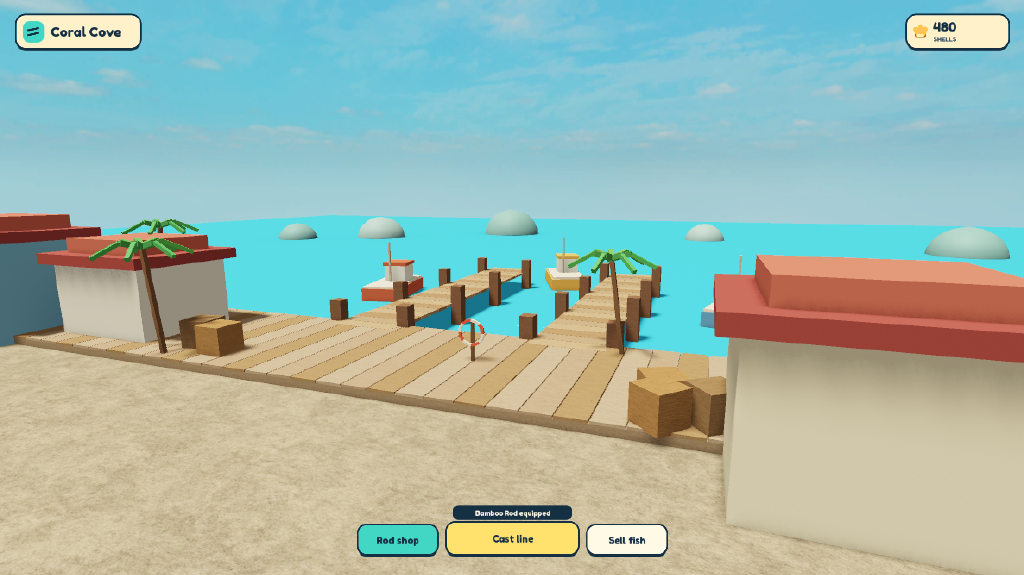
Both HUDs leave the water clear. One detail I liked in the WEPPY version was “Bamboo Rod equipped” just above “Cast line.” I could see what I was about to cast without opening the shop.
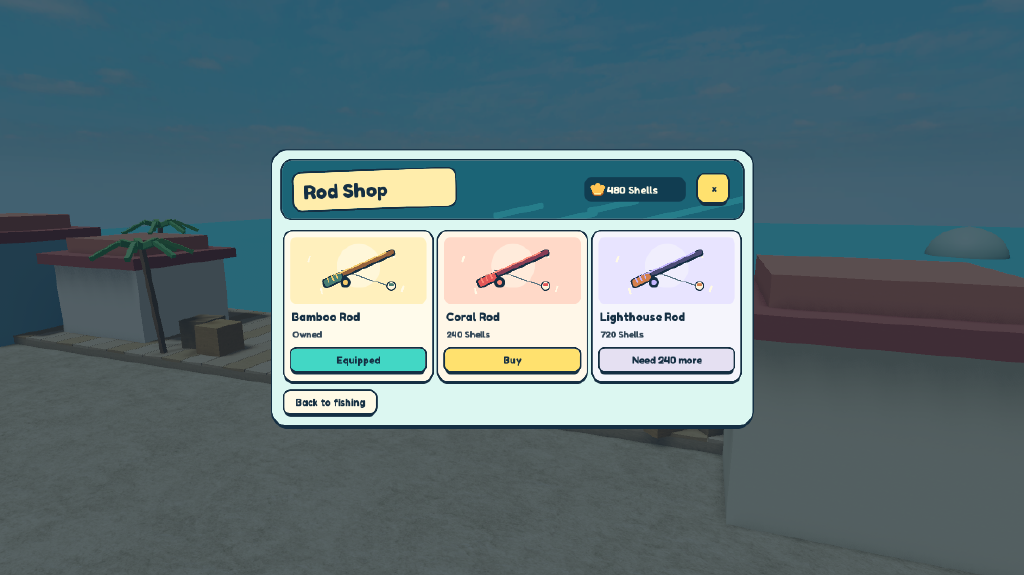
Everything in that shop, including the rods, was drawn with editable Roblox UI shapes. A thin bar forms the shaft, a circle makes the reel, and a short line holds the float. No image files went into this first pass. From here, I kept the same harbor and camera while I worked on the shop itself.
1. Describe where the shop belongs
Give my rod shop the feel of a sunny dockside tackle stall. Use weathered wood, sea-glass colors, and shell-shaped price tags. Keep the shop in the same spot, with the same three cards, rod drawings, prices, and controls.
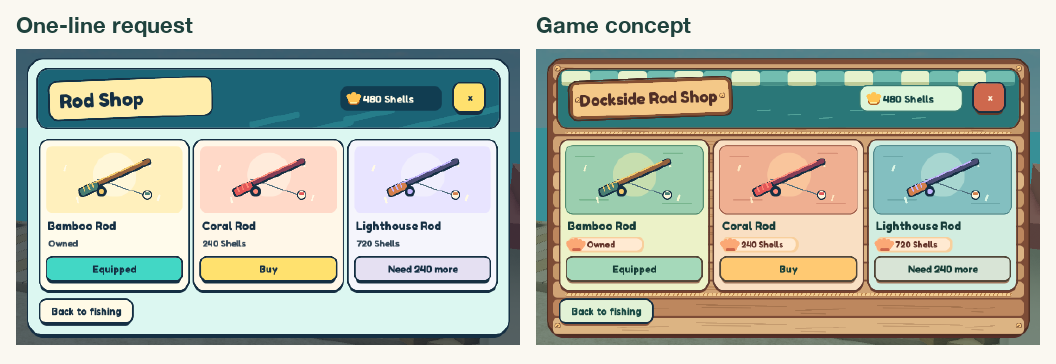
Find the Coral Rod in the middle of both shots. The drawing stays in the same spot. Around it, a mint awning shades the sign, the counter has a wood grain, and each price tag carries a tiny shell. “Dockside tackle stall” gave WEPPY a place to draw from. The last sentence kept the parts I already liked.
2. Sketch how players should browse
Three equal cards made the rods easy to scan. I wanted a closer look at one rod while keeping the other prices in sight, so I attached this sketch to the same chat.
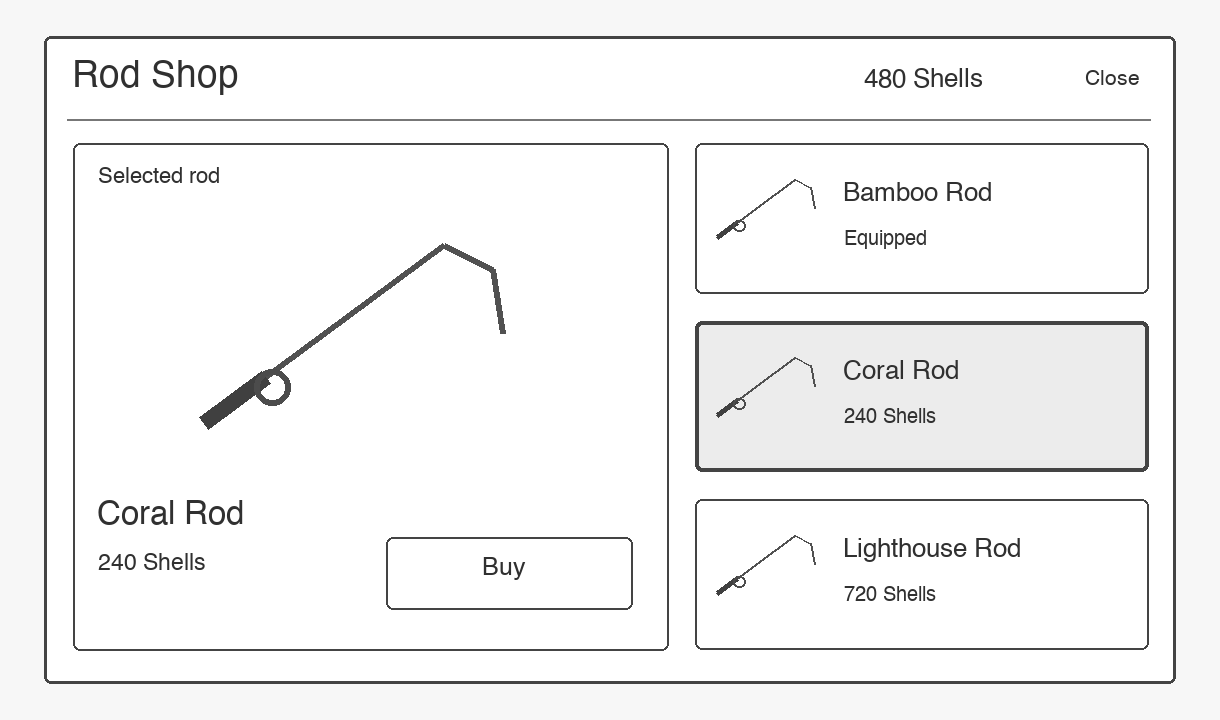
Use the attached sketch to rearrange the inside of the shop. Put a large preview of the selected rod on the left and the three-rod list on the right. Keep the wooden frame, awning, prices, and rod drawings from the previous version.
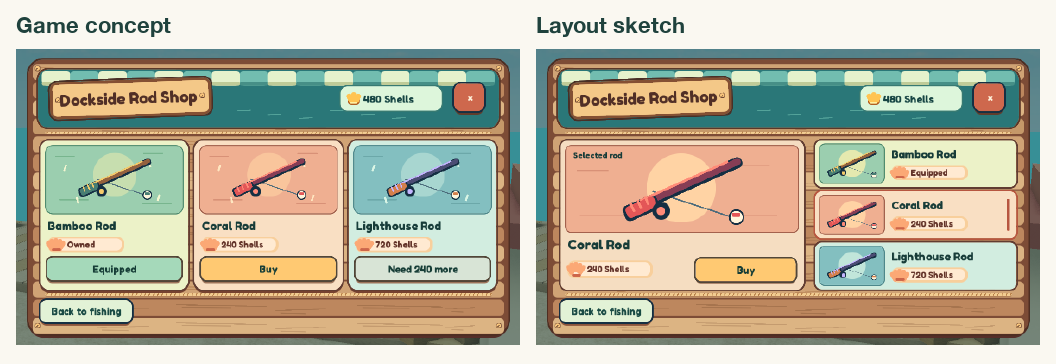
Now the selected Coral Rod catches my eye first. I can still glance to the right and see how much the Lighthouse Rod costs. One large box and three small ones did most of the work in the sketch. There was no need to draw the awning again.
3. Give each rod its own artwork
Once I liked the layout, the rods themselves stood out. I wanted pink branches and a turquoise reel for the Coral Rod, and a little lantern hanging from the Lighthouse Rod.
For this example I used three transparent PNGs I had already generated for Coral Cove. If you’re starting fresh, use an AI chat that can generate images. In WEPPY, connect an Open Cloud credential with asset upload permission and select the Roblox user or group that should own the art. Then ask for the whole sequence in one prompt.
Create three transparent cartoon rod icons for Coral Cove. Give the Bamboo Rod a bamboo shaft and cork float, the Coral Rod pink branches and a turquoise reel, and the Lighthouse Rod a striped body with a hanging lantern. Save them to the WEPPY Asset Library, upload them to Roblox under my selected creator, and use each image in both the shop list and its large preview. Keep the layout, text, and prices as they are.
Already have artwork? Attach the files and replace the first two sentences with “Use the three attached PNGs for Bamboo Rod, Coral Rod, and Lighthouse Rod, in that order.”
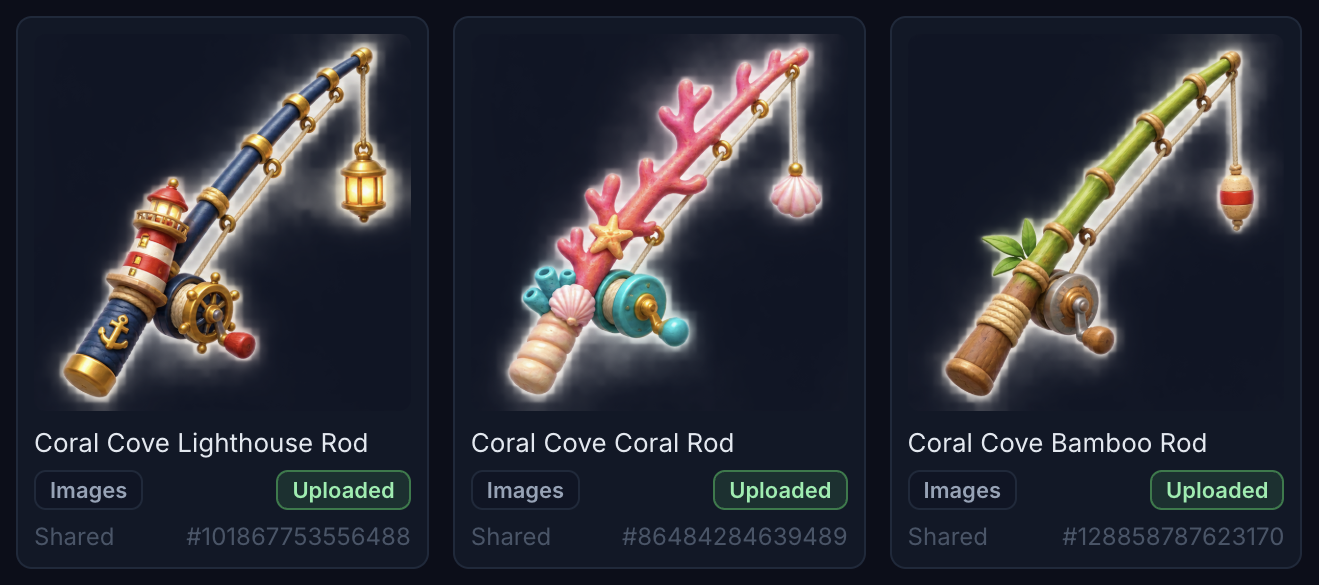
WEPPY kept the originals in the Asset Library, uploaded them to Roblox, and connected each image ID to its list slot and large preview. I didn’t have to copy three IDs into six places by hand.
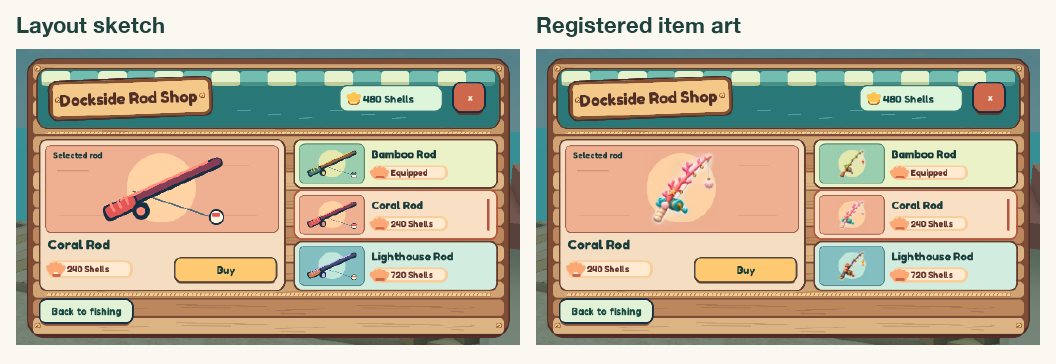
The straight shaft now branches into pink coral, with a turquoise reel by the grip. Even in the small list, I can pick out the same silhouette. I saved the place and reopened it in Roblox Studio. All three rods appeared in the list, and each image loaded when I selected its large preview.
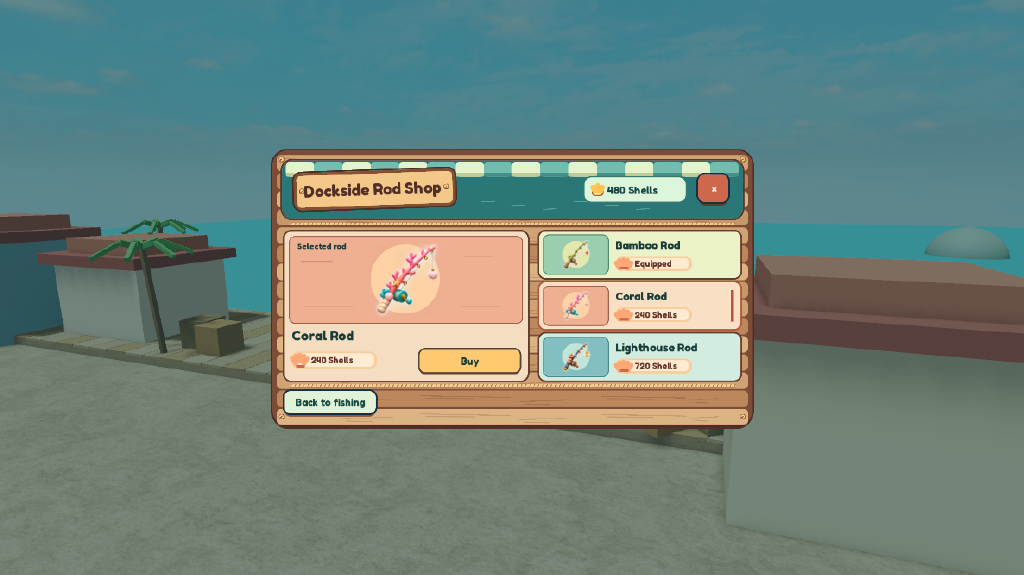
Try the one-line prompt in your own game first. If the shop feels out of place, describe its setting and materials. If the items are hard to compare, sketch the arrangement. And if the layout already works, you can keep it and change just the art.