
Connect WEPPY Roblox Studio Plugin
If the MCP setup is complete, the plugin installs automatically. Just open Roblox Studio and connect.
When the MCP server runs for the first time, it places the plugin file into the Roblox Studio Plugins folder automatically.

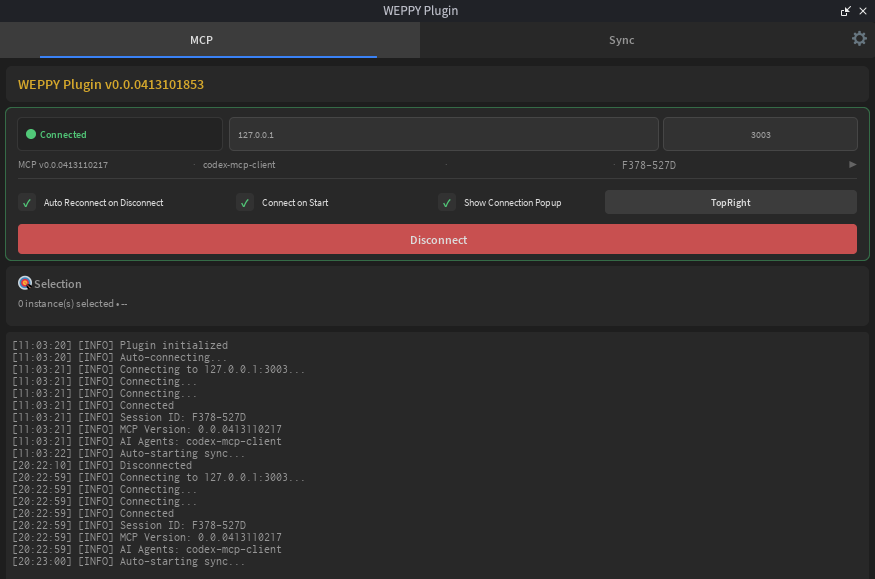
Settings
- Auto Connect — Automatically connect to MCP server when Studio starts
- Auto Reconnect — Automatically reconnect when connection is lost
- Language — Change the plugin UI language
Troubleshooting
Completely close and restart Roblox Studio. Check the Plugins folder.
Verify the MCP server is running and port 3002 is available.
Enable the Auto Reconnect option in settings.
If the plugin wasn't installed automatically Manual install guide ↗
WEPPY Roblox Explorer
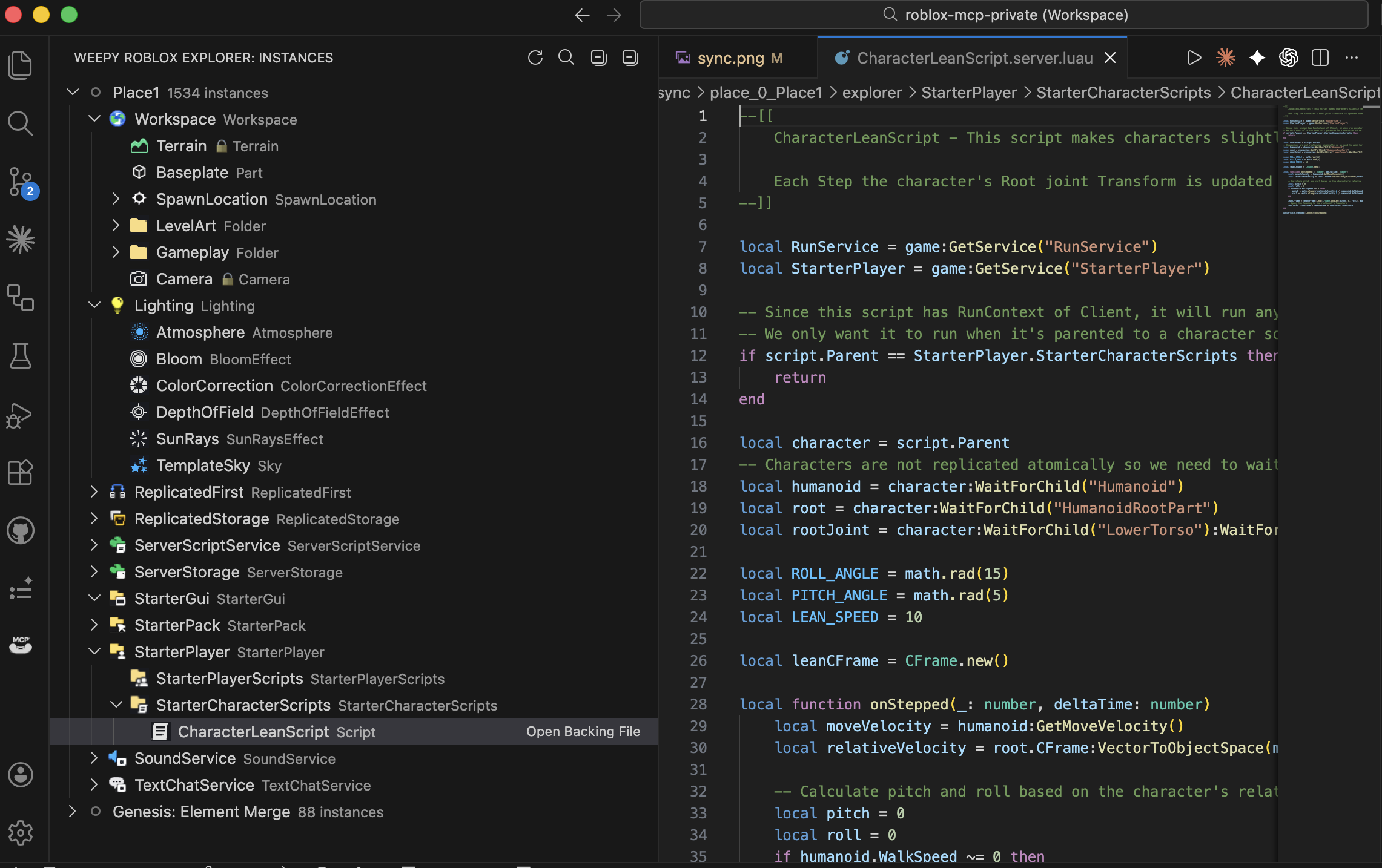
OptionalA companion extension that lets you browse the Roblox Studio instance tree, open synced scripts, and check sync status directly in your editor. Available for VSCode and Antigravity.
Explorer is not required. MCP and the plugin cover the core features. Install it when you want to browse the project structure in your editor.
VSCode
Search in the Extensions sidebar or install from the marketplace.
Antigravity
Antigravity is VSCode-based, so the same extension works. Search and install from the Extensions tab.
Key features
- 200+ Roblox class icons (dark/light theme)
- Multi-place tree separation
- Click to open script/property files
- Sync status badges (modified, studio, conflict)
- Auto-refresh on file changes