Agents build,
you stay in control. WEPPY gives AI agents a direct way to work inside Roblox Studio while keeping creators in control.
Connect Claude Code, Codex, Gemini, or Antigravity to Roblox Studio to handle scripts, instances, terrain, lighting, and assets. Open Lobby and Game as separate Studio windows, then ask for one change that touches both Places. You can also generate an image, upload it as a Roblox asset, and apply it to the current Place without copying asset IDs by hand.
Review the work through Explorer and Dashboard in real time.
Studio control Direct Roblox Studio control Multi-place Work across Studio windows Assets Generate, upload, and apply Playtest Automated verification loop Dashboard Real-time monitoring UI Studio Create and review game UI
YouTube demo
See it in a real demo video. The demo video shows the real process of turning a natural-language request into an executable Roblox Studio action.
Open on YouTube Multi-Place work
Work across multiple Places Open Lobby, Game, and Shop as separate Studio windows, then let one request split the work across them.
Connect multiple Roblox Studio windows to one MCP server and identify each one with a Studio ID such as `studio-1`. Tell the agent to use one Studio ID for Lobby and another for Game, so one request can update several Places. Keep several agents attached and confirm which agent and Studio window are active from Dashboard. Learn more → WEPPY UI Studio
UI Studio AI agents create UI that matches the game's style, or analyze existing UI and suggest improvements.
AI agents build and edit game-style menus, HUDs, buttons, labels, image panels, and other in-game UI. When starting a UI task, the AI gathers requirements (purpose, screen, target devices) through guided questions, then composes the screen UI. Capture the current UI for Analysis suggestions, then review captures, Before/After comparisons, and change details from History. Learn more → WEPPY PlayTest
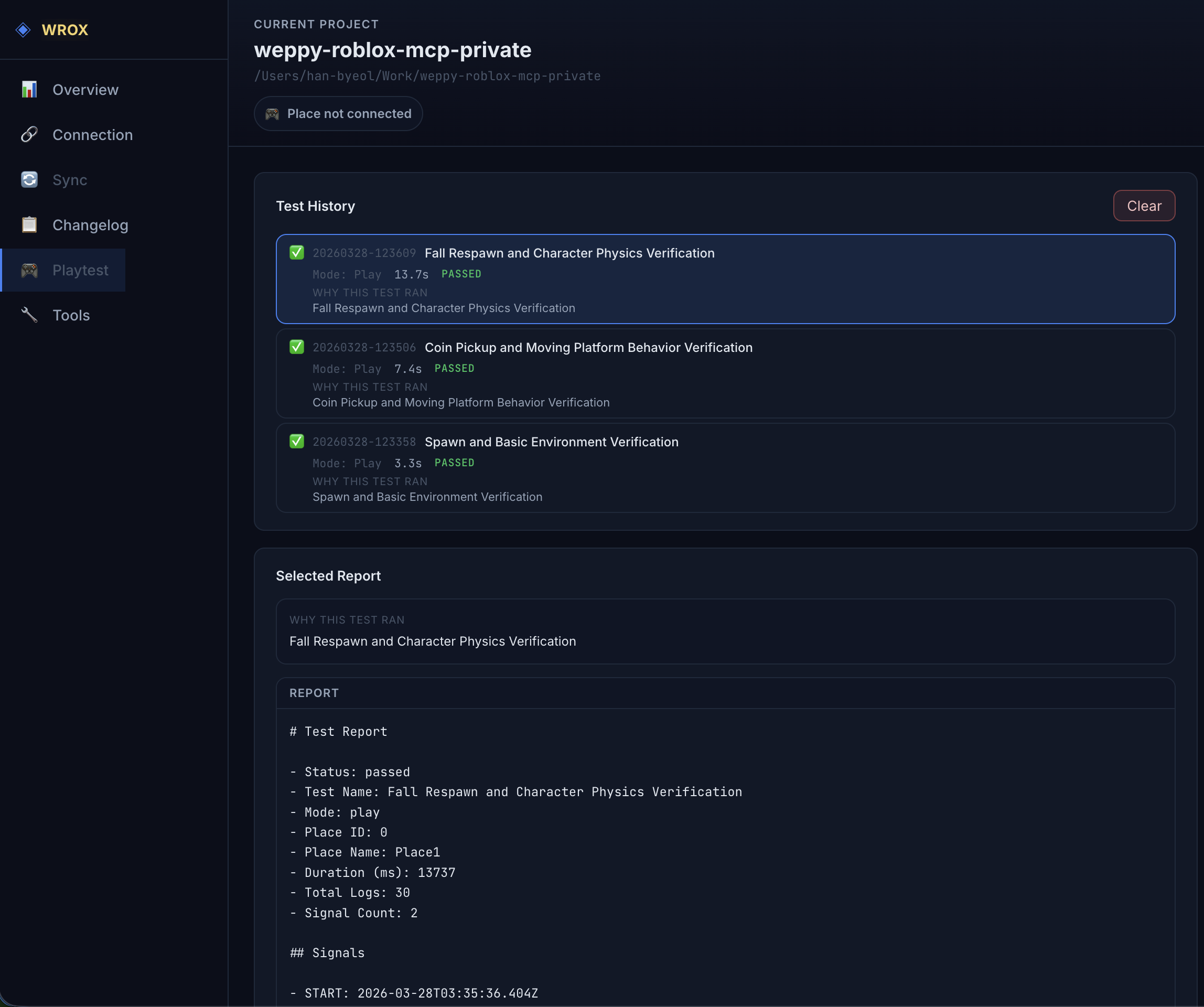
Validate with PlayTest AI can run Studio PlayTest, collect logs, and leave reports so you can verify the feature before the next iteration.
AI can start and stop Play or Run mode directly to verify changes inside Studio. Inject test scripts and keep logs, duration, and PASS/FAIL status as a report. Keep implementation and validation in the same request flow before moving to the next iteration. Learn more → WEPPY Dashboard
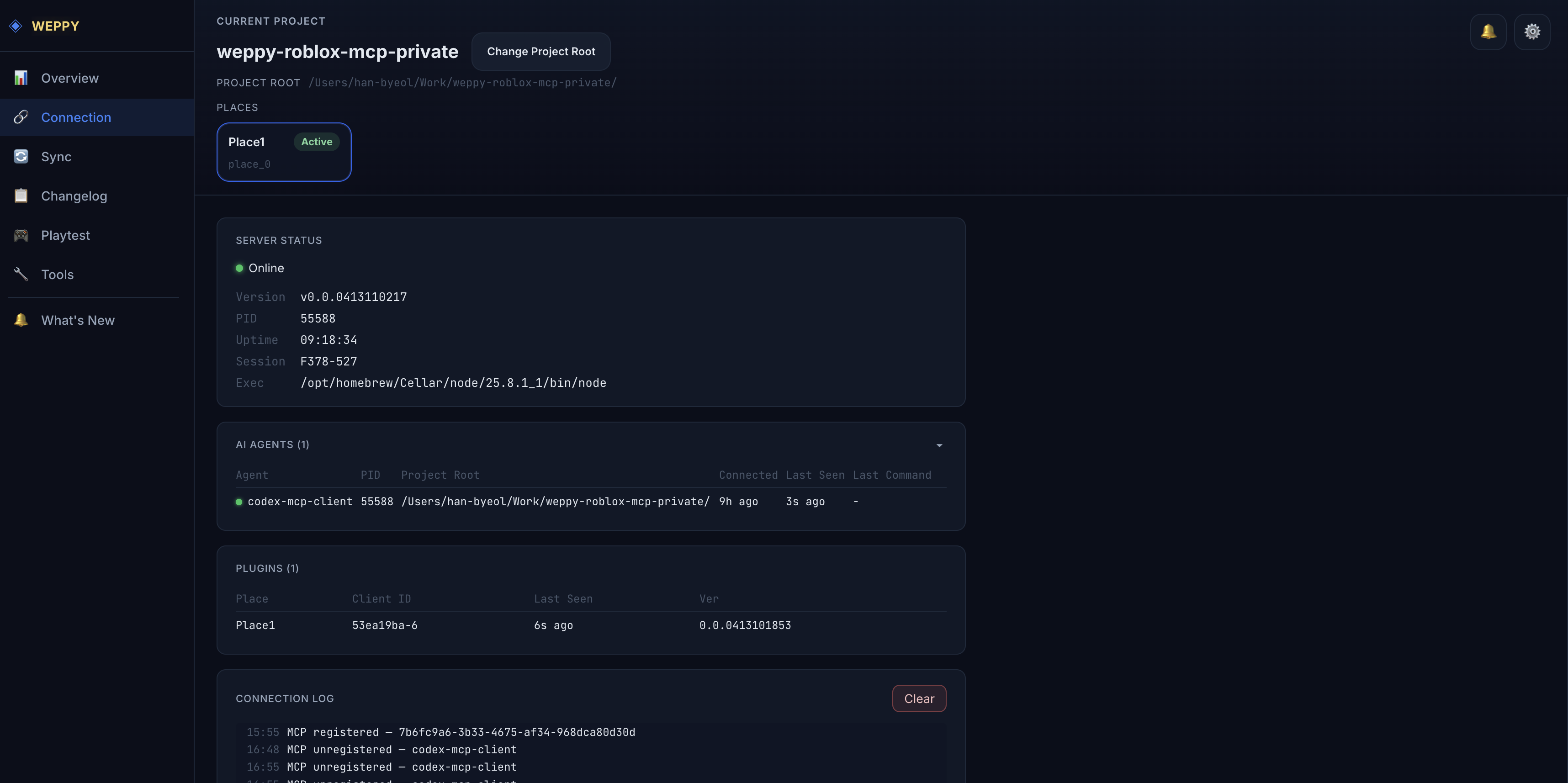
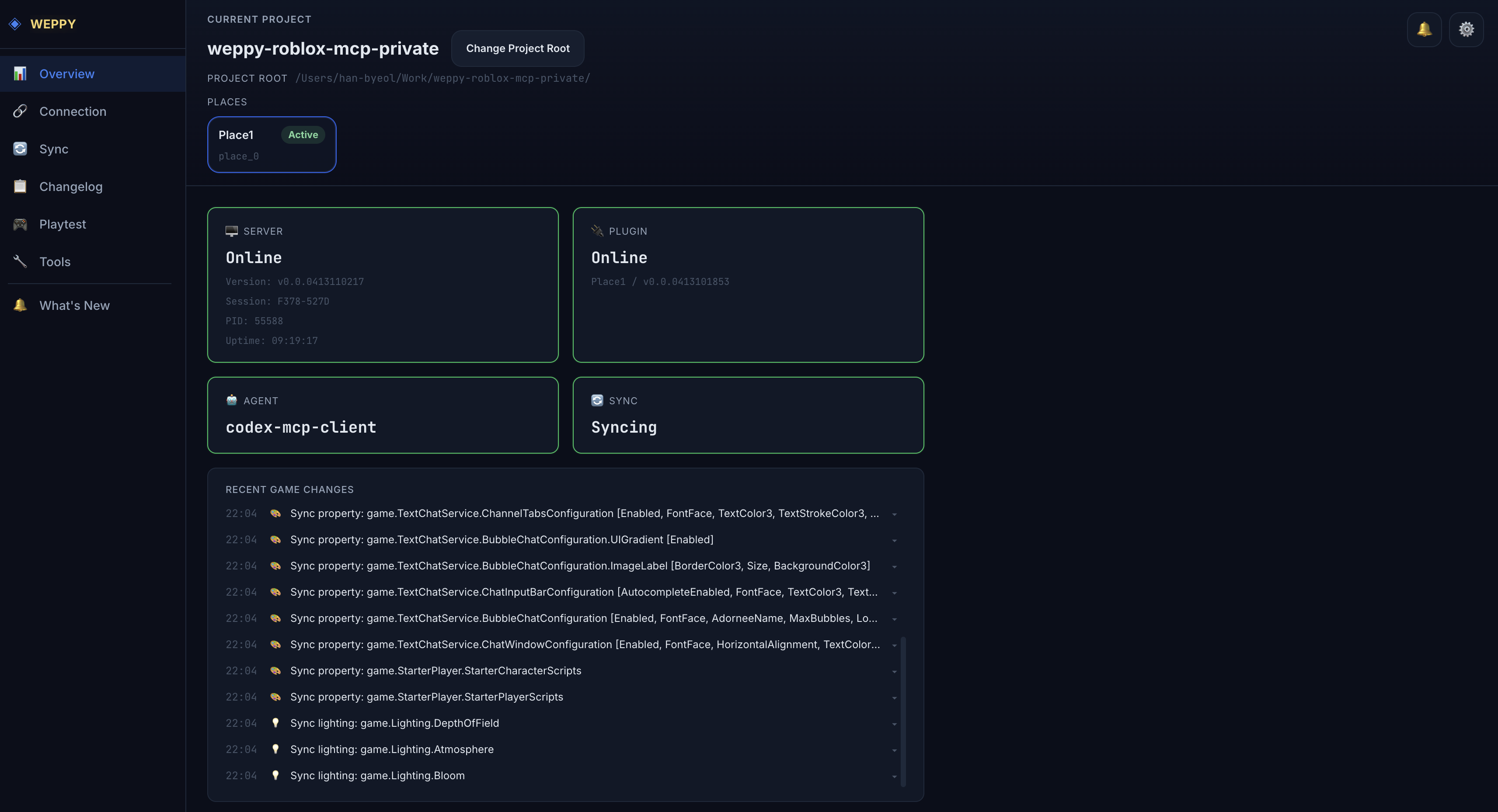
MCP Dashboard Makes tool usage, monitoring, and verification status visible at a glance with MCP Dashboard.
See multiple AI agents and multiple Roblox Studio windows in one dashboard, then route work to the right Studio target. Track tool usage, recent changes, sync activity, and playtest output in a single screen. Review what changed in history and move on to the next iteration. Learn more → WEPPY Plugin
Plugin Keeps the studio plugin at the center and connects instance, script, terrain, and asset workflows directly.
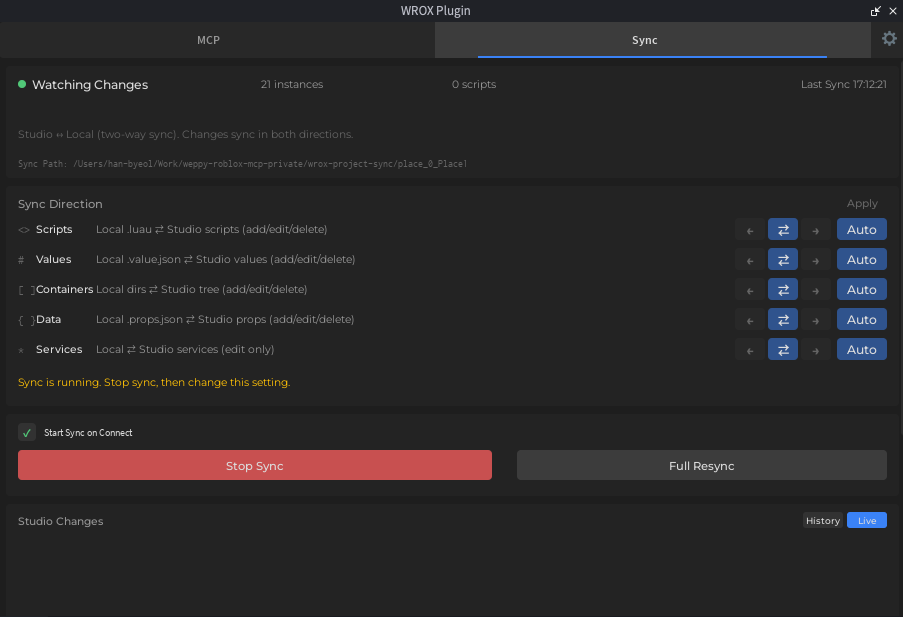
Automatically reconnects when the MCP server and Studio plugin are disconnected, so work keeps flowing. Automatic sync on file changes keeps Studio and the local project aligned. Detects and manages concurrent edits so you can merge safely. WEPPY Assets
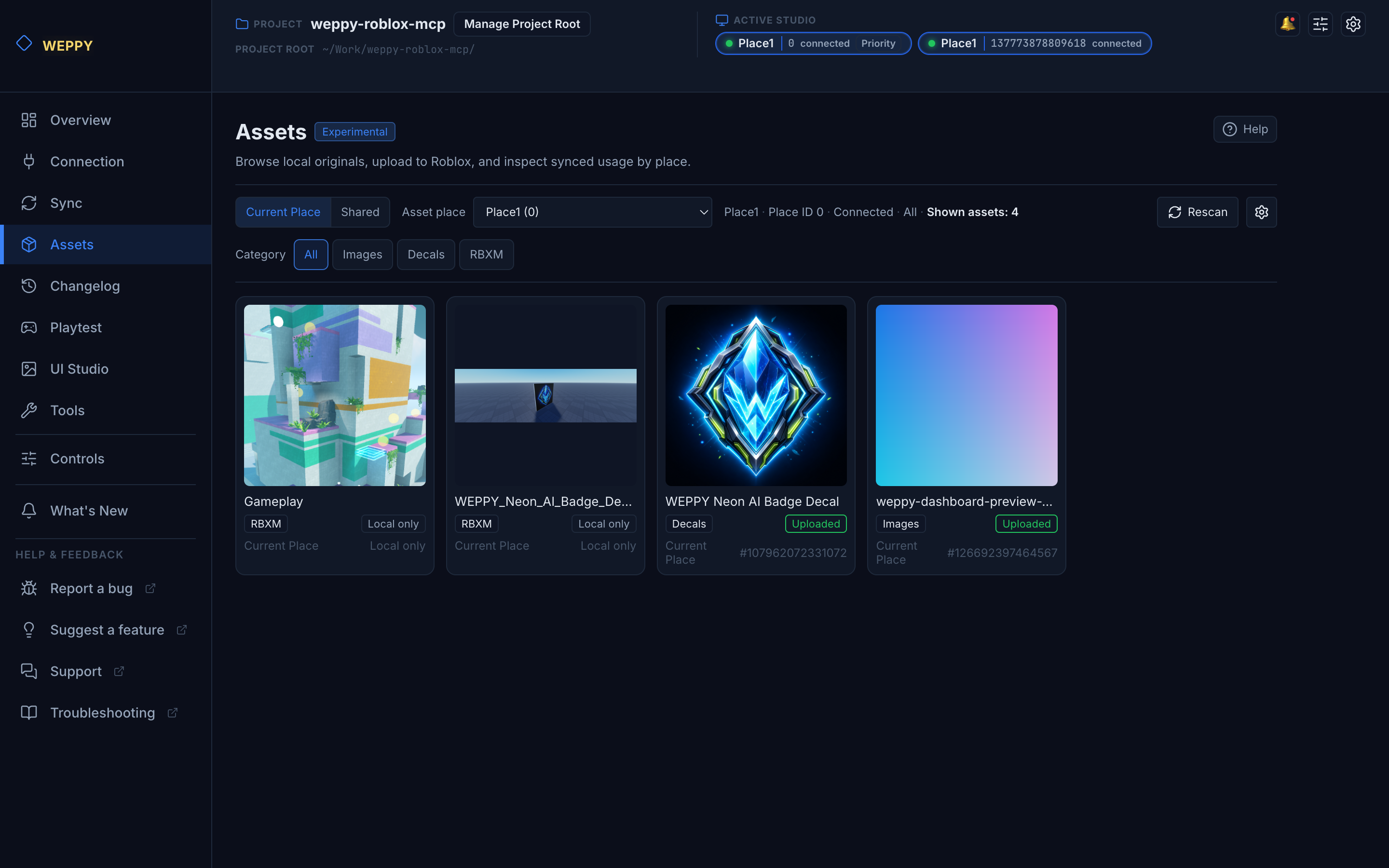
From generated image to Place Create an image with generative AI, store it in Asset Library, upload it to Roblox, and apply it in Studio.
Generate or prepare icons, decals, UI images, and RBXM files, then keep them in the local Asset Library. Upload through Roblox Open Cloud and apply the returned asset URI to ImageLabel, Decal, Texture, or other Studio properties. Store assets by Place or as shared project assets so they can be reused in another Place later. Learn more → WEPPY Explorer
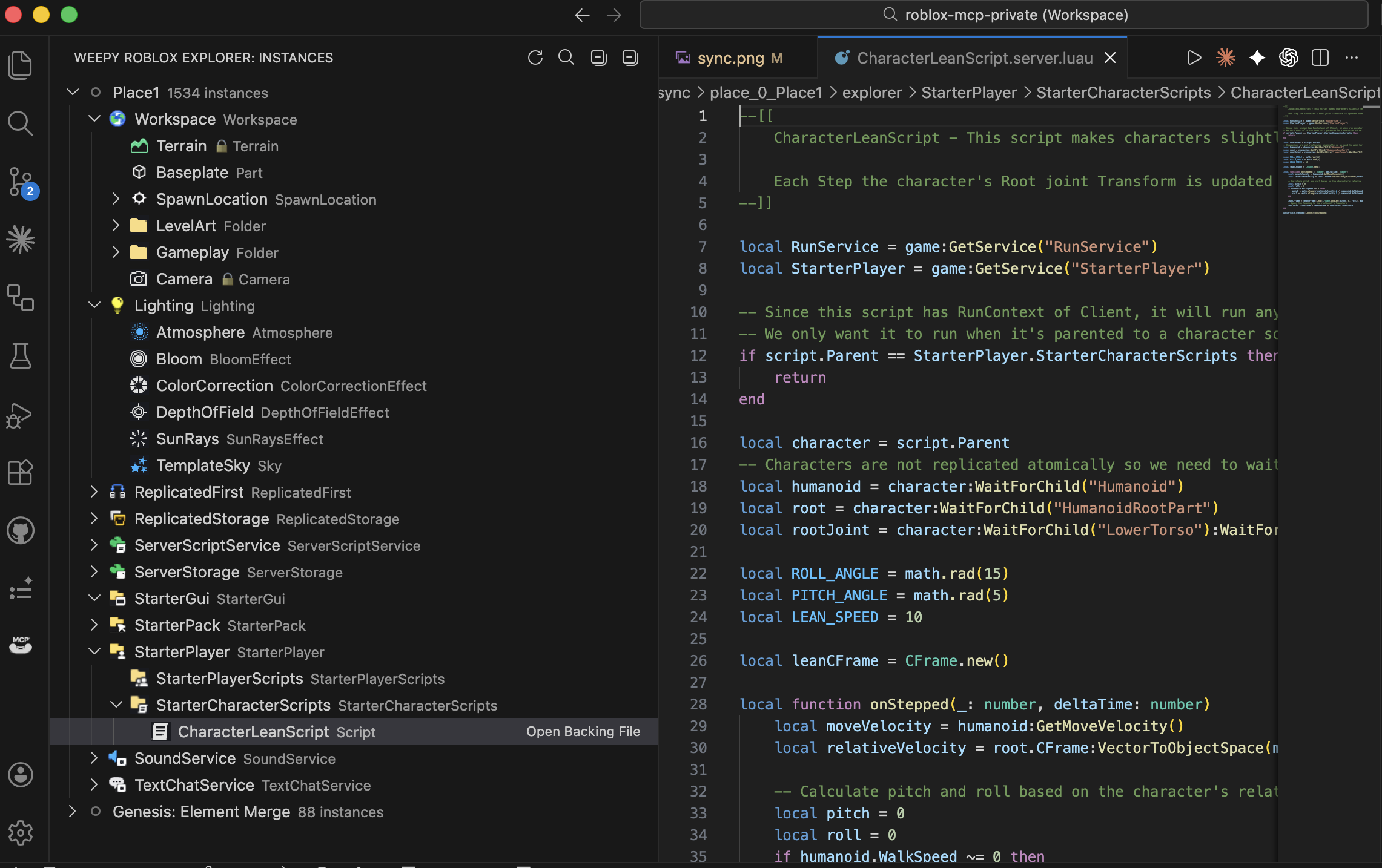
Explorer Shows the synced project structure and makes large editing flows easier to manage.
Edit scripts directly in Antigravity with bidirectional Sync, then see them reflected in Roblox Studio. Changes made in Studio sync back into the Antigravity project so it stays current. Browse and manage the hierarchy of multi-place projects from the editor at a glance. Learn more → Instances & Properties Search, clone, rename, tag, and batch-edit properties across the live DataModel.
Instance changes Property edits Selection context Scripts & Execution Read, fix, create, and run Luau right away in a synced local context.
Script source edits Dependency checks Luau execution Terrain & Environment Control terrain, lighting, camera, and spatial queries as one prompt flow.
Terrain generation Lighting control Spatial queries Assets & Effects Handle generated images, RBXM files, Creator Store assets, audio, animation, and particles in one request.
Image upload Asset Library Animation and audio Playtest & Validation Run playtests, inject checks, and review logs to carry changes through validation.
Playtest control Test injection Log review Sync & Monitoring Mirror project state locally and track sync activity, change history, and multi-Place targets.
Bi-directional sync Dashboard history Studio IDs UI Design Build UI that matches the game's style or analyze existing UI for improvement suggestions.
UI build/edit Screen capture Improvement suggestions Get started
One click to install, and you are ready to go. Click Install and follow the guide — it only takes a minute.