
Monitor and manage server status, connections, sync, tool execution history, and game change history in real time from a web browser.
Overview
The dashboard is the web-based monitoring interface provided by the MCP server. It opens automatically in your browser when the MCP server starts, and lets you track everything the AI agent does in Roblox Studio in real time.
- Understand system state visually without digging through terminal logs
- Track what the AI changed in Studio via the change history
- View sync status, connection status, and tool execution statistics in one place
How to Access
The dashboard opens automatically in your browser when the MCP server starts. To open it manually:
http://localhost:3002Set
DASHBOARD_AUTO_OPEN=falseto disable automatic opening.
Available Features by Connection State
| State | Condition | Available Pages |
|---|---|---|
| Server disconnected | Server not running | Reconnection waiting screen only |
| Server connected | Server connected, plugin not connected | Connection, Tools, Settings |
| Studio connected | Both server and plugin connected | All pages |
Status Cards
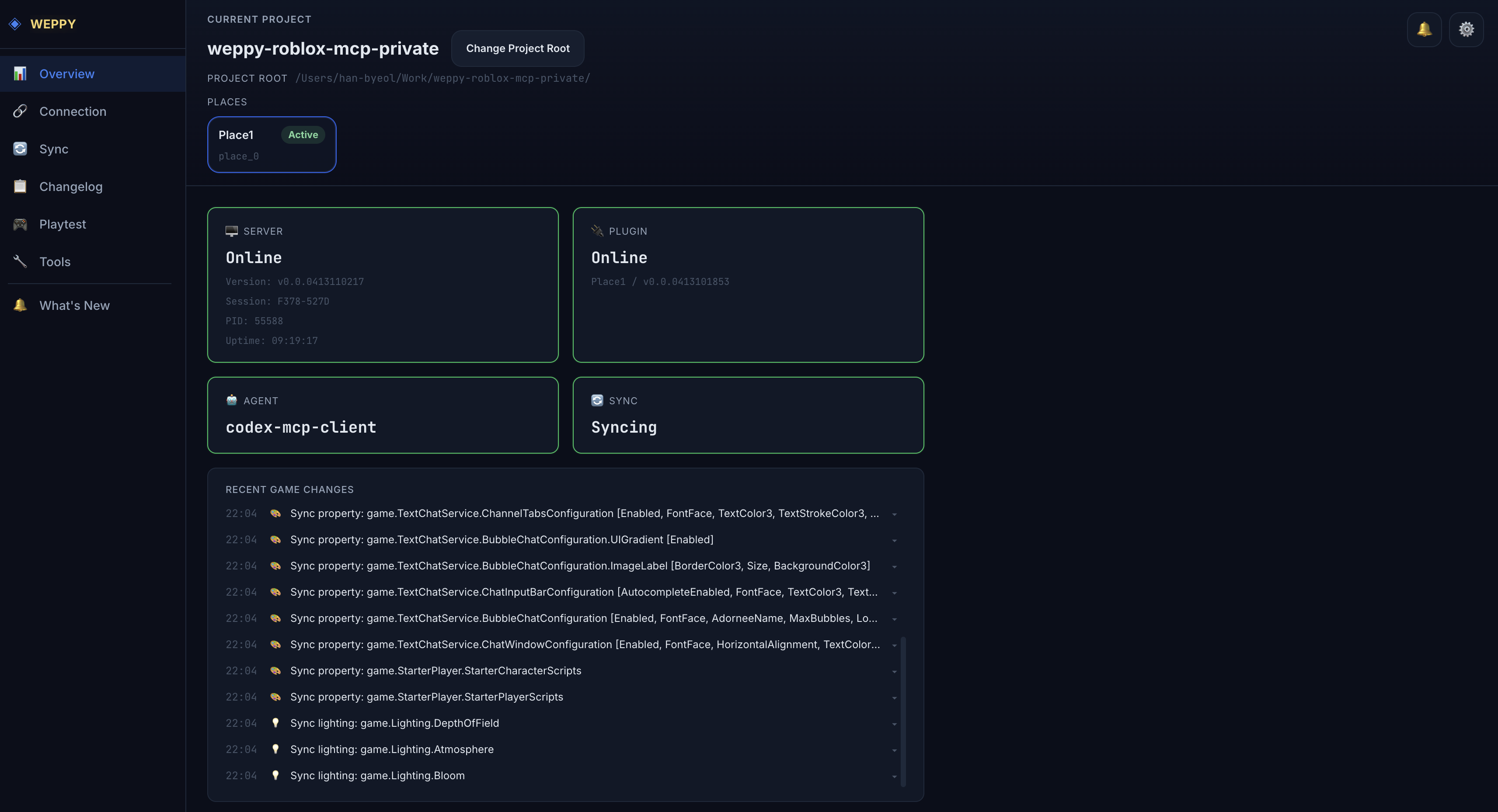
The Overview page is the dashboard’s home screen and shows the overall system state at a glance.
| Card | Information Shown |
|---|---|
| Server | Server connection state (Online/Offline) |
| Plugin | Plugin connection state and Place info |
| Agent | Currently connected AI agent name |
| Sync | Sync state (Idle/Syncing/Error) |
Recent Game Changes
Displays the most recent changes the AI made in Studio in real time (up to 20). Each entry is shown with a change category icon, and clicking it takes you to the Changelog detail view.
Category icons:
- Script — scripts created/modified
- Instance — instances created/deleted/moved
- Property — property changes
- Lighting — lighting/environment changes
- Terrain — terrain changes
- Asset — assets inserted
The dashboard uses SSE (Server-Sent Events) to update data in real time. It automatically reconnects 3 seconds after an SSE connection is lost.
Connection
Monitor server, AI agent, and plugin connection status in one place.
The Connection page monitors all connection states in the MCP system. It is always accessible when the dashboard is in server connected or Studio connected state.
Server Status
| Field | Description |
|---|---|
| Status | Connection status badge (Online/Offline) |
| Version | MCP server version |
| PID | Server process ID |
| Uptime | Server uptime |
| Session ID | Current session identifier |
| Exec Path | Server executable path |
AI Agents
Shows the list of currently connected AI agents in a table:
| Column | Description |
|---|---|
| Name | Agent name (e.g., Claude Code) |
| PID | Agent process ID |
| Working Dir | Agent working directory |
| Connected | Time since connection |
Multiple agents are shown when connected simultaneously.
Plugins
| Column | Description |
|---|---|
| Place | Place name |
| Client ID | Plugin client identifier |
| Last Seen | Time of last communication |
| Version | Plugin version |
The Connection Log shows connection-related events in real time. Agent and plugin connect/disconnect events are appended automatically via SSE.
Sync
Monitor the current sync state, direction settings, and logs for Studio ↔ local file sync.
The Sync page visually shows the current state and configuration of Studio ↔ local file sync. It is only accessible when the dashboard is in Studio connected state.
Sync Status
| Status | Meaning |
|---|---|
| Idle | Sync is idle |
| Initializing | Initial sync in progress |
| Syncing | Incremental sync in progress |
| Error | Sync error occurred |
The status card also shows the sync path, number of synced instances, and the current Apply Mode (Auto/Manual).
Sync Directions
Shows per-type sync directions in a table:
| Column | Description |
|---|---|
| Type | Sync target type (Scripts, Values, Instances, Data, Services) |
| Direction | Sync direction (Local → Studio, Studio → Local) |
| Apply Mode | Apply mode (Auto/Manual) |
The Sync Log shows sync events in chronological order. Each log entry includes a change type tag (create, update, delete, etc.) and the target path.
Changelog
Records all changes the AI makes in Roblox Studio by session and provides a change summary, timeline, and Before & After comparison.
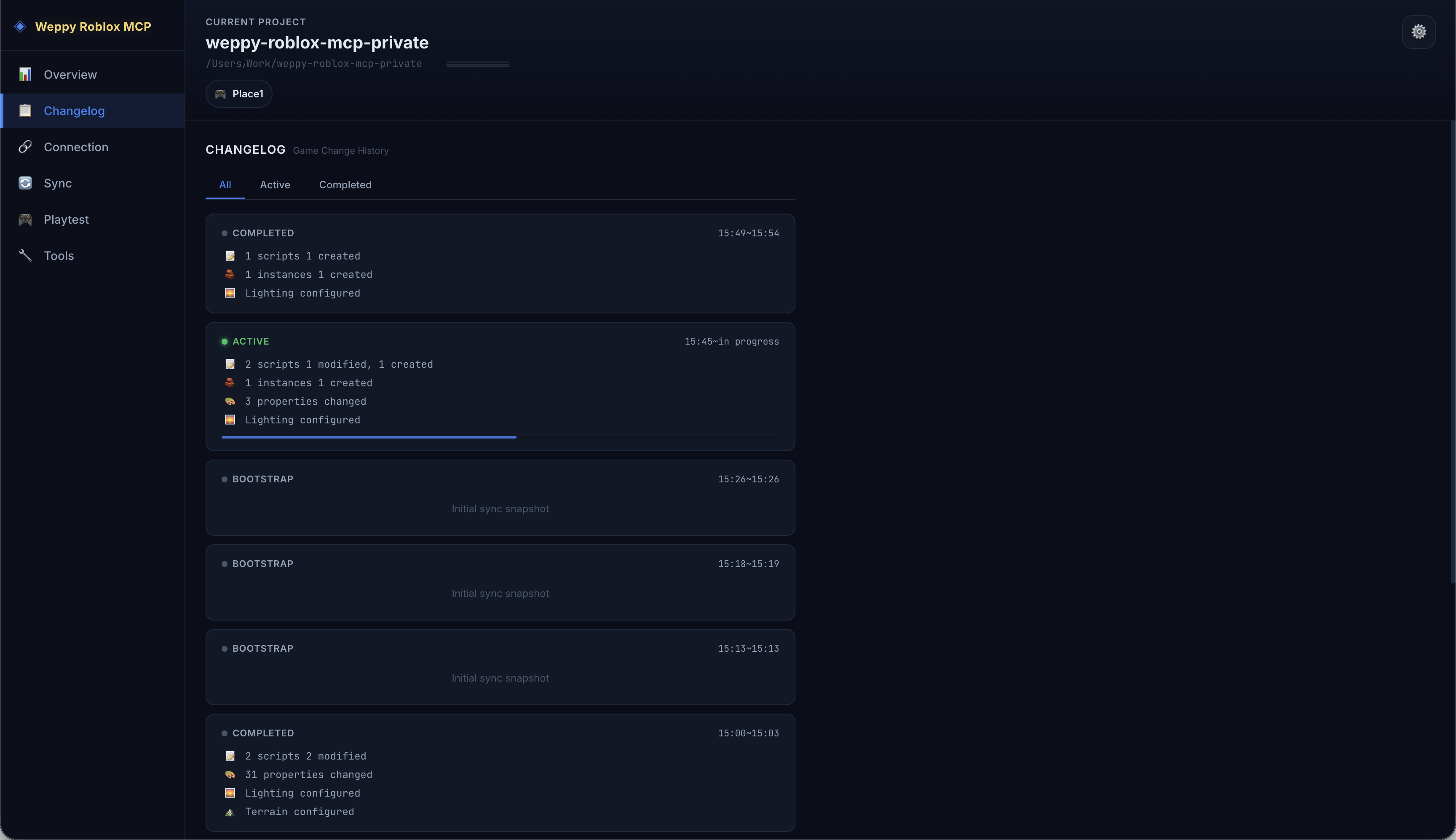
The Changelog tracks the game change history that AI agents perform in Studio. Changes are grouped by session so you can see at a glance what type of changes happened and how many in each session.
Session Card List
Each session card shows a status:
| Status | Meaning |
|---|---|
| Active | Currently ongoing session (updates in real time) |
| Completed | Finished session |
| Bootstrap | Initial sync session |
Each card shows a per-category count of changes for that session (Script, Instance, Property, Lighting, Terrain, Asset).
Use the top tabs to filter sessions: All, Active, Completed.
Session Detail View
Click a session card to enter the detail view.
Change Summary: Visualizes the session’s changes as 6 category cards (Scripts, Instances, Properties, Lighting, Terrain, Assets).
Change Timeline: Lists all changes in the session in chronological order. Use the Category dropdown to filter by a specific category; click an entry to expand the Before & After comparison view.
Before & After
| Confidence | Meaning | Example |
|---|---|---|
| exact | Before and after values are precisely recorded | Property change, script edit |
| partial | Only partial information recorded | Compound change |
| after-only | Only the after value exists | New instance creation |
| intent-only | Only the intent is recorded | Deletion, etc. |
Playtest
Check the status and results of playtests run by the AI.
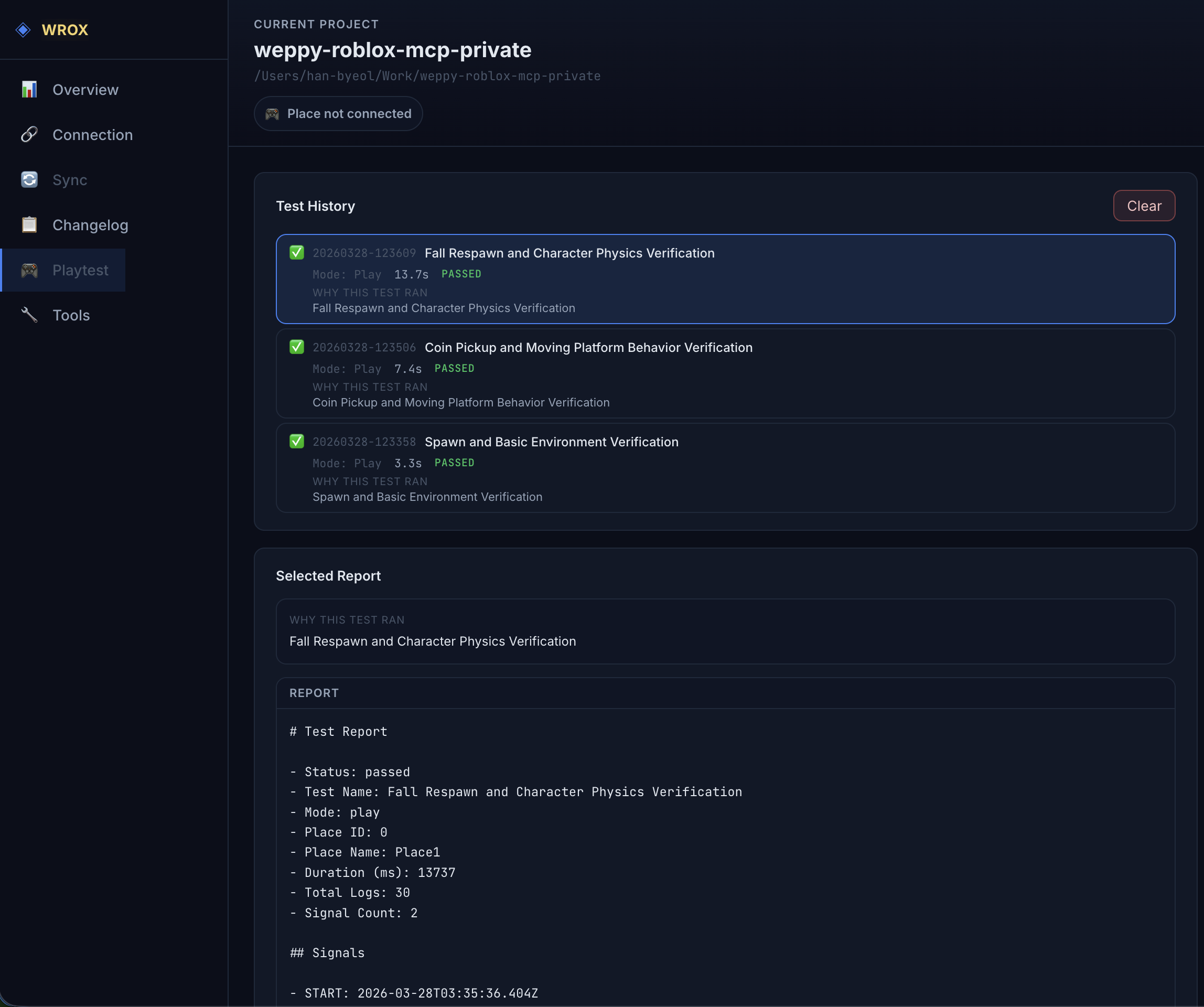
The Playtest page shows the status and results of playtests the AI has run. It is only accessible when the dashboard is in Studio connected state.
Playtest Status
| Status | Meaning |
|---|---|
| NotRunning | Playtest is not running |
| Running | Playtest is running |
| Paused | Playtest is paused (Run mode only) |
Test History
Lists test results from AI run_test action calls in chronological order:
| Field | Description |
|---|---|
| Timestamp | Test execution time |
| Test Report | Link to the test report |
| Mode | Execution mode (play/run) |
| Duration | Time the test took |
| Status | Result (Passed/Failed) |
Click a test report to view the detailed markdown report and logs.
Tools
View the execution history and statistics for MCP tools run by the AI.
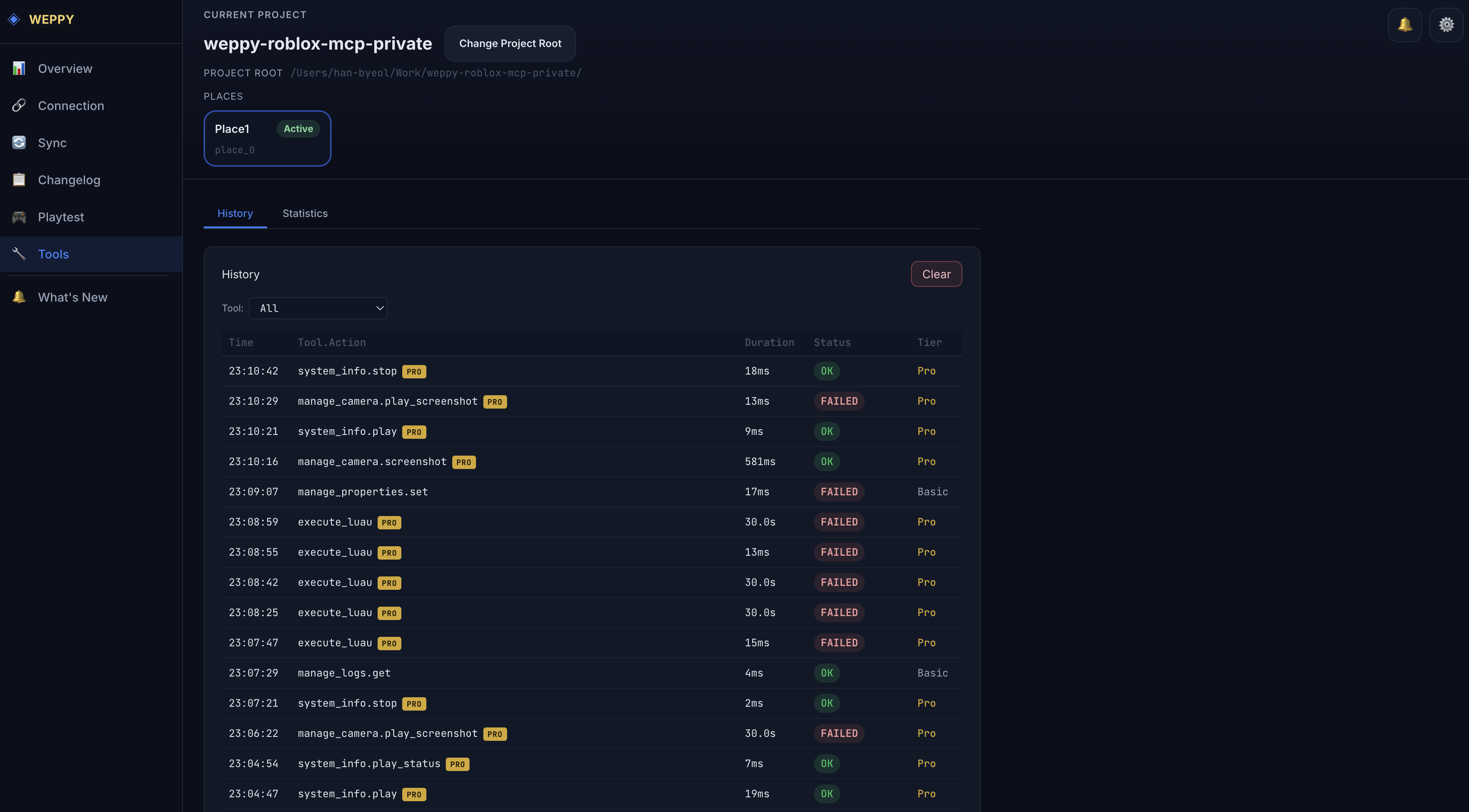
The Tools page shows the execution history and statistics for MCP tools the AI has run. It consists of two sub-tabs: History and Statistics. It is always accessible when the dashboard is in server connected or Studio connected state.
History Tab
Shows tool execution history in a chronological table:
| Column | Description |
|---|---|
| Time | Execution time |
| Tool.Action | Tool and action executed (e.g., query_instances.get_instance) |
| Duration | Time taken to execute |
| Status | Result status (OK/Error) |
| Tier | Tier used (Basic/Pro) |
Features: Filter by specific tool using the Tool dropdown, browse large histories with pagination, new execution records are added in real time.
Statistics Tab
Visually analyzes tool usage statistics:
- Tier distribution — Basic/Pro tool usage ratio
- Per-tool statistics — call count and average response time per tool
- Per-action analysis — detailed per-action statistics within a tool
Basic tier users also see a Tier Usage Progress bar and a Basic vs Pro comparison modal.
Settings
View and manage license information, server settings, and language.
The Settings page lets you view and modify license information and server settings. It is always accessible when the dashboard is in server connected or Studio connected state.
License (Read-Only)
| Field | Description |
|---|---|
| Status | Status badge (Active/Inactive) |
| Tier | Current tier (Basic/Pro) |
| License Key | Masked license key |
| Provider | License provider info |
General
| Setting | Description |
|---|---|
| Log Level | Log output level |
| History Recording | Whether to save tool execution history |
| Stats Collection | Whether to collect tool usage statistics |
| Request Timeout | Request timeout (seconds) |
Server Environment (Read-Only)
| Environment Variable | Description | Default |
|---|---|---|
HTTP_PORT | HTTP port | 3002 |
HTTP_HOST | HTTP host | 127.0.0.1 |
DASHBOARD_AUTO_OPEN | Auto-open dashboard | true |
Language
Change the dashboard UI language. Supports 6 languages + Auto (auto-detect from browser).
| Option | Language |
|---|---|
| Auto | Auto-detect from browser |
| English | English |
| 한국어 | Korean |
| 日本語 | Japanese |
| Español | Spanish |
| Português | Portuguese |
| Bahasa Indonesia | Indonesian |