
Review the execution history and statistics for MCP tools the AI has run, and get a high-level picture of the tool categories WEPPY provides.
Overview
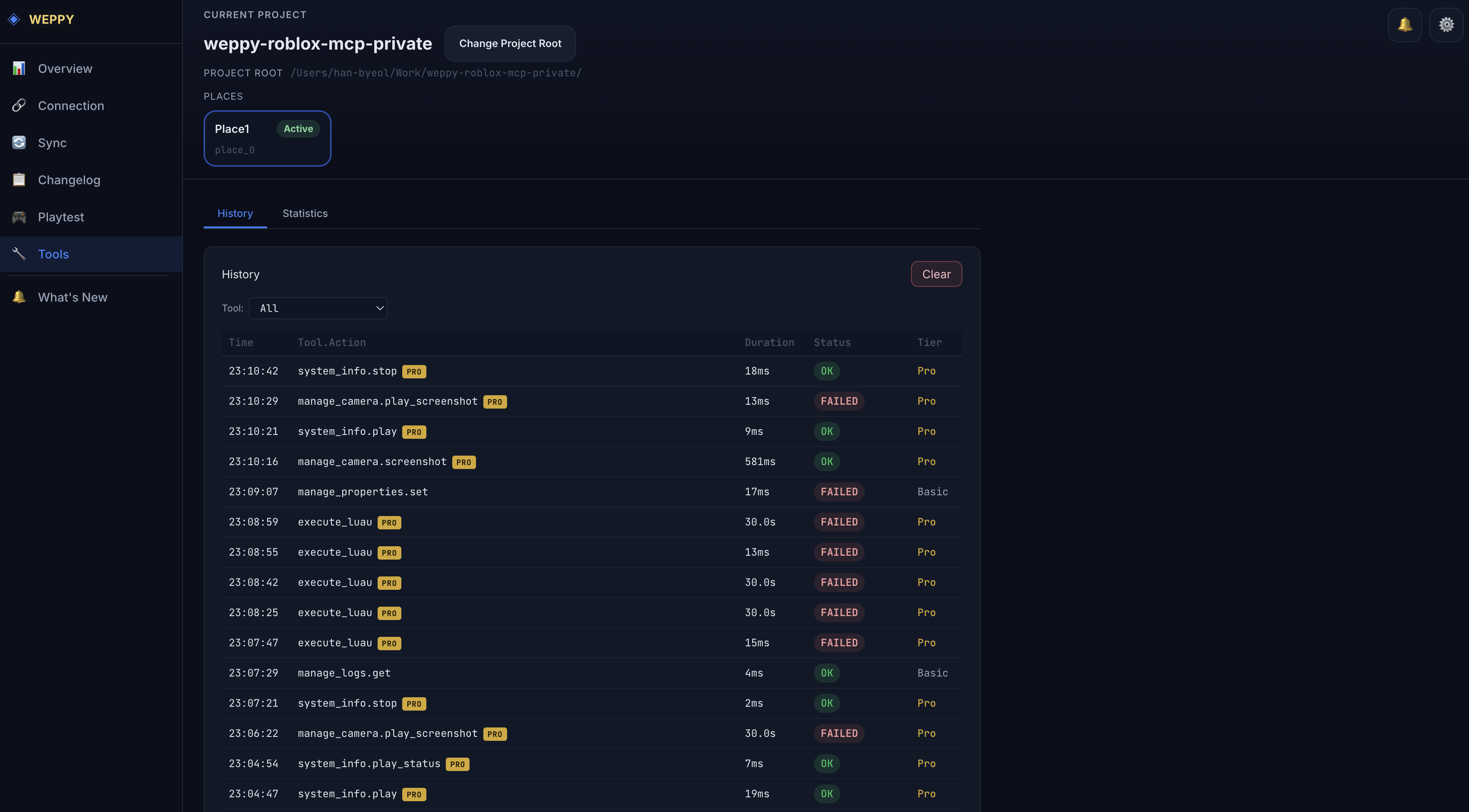
The dashboard’s Tools page shows the execution history and statistics for MCP tools the AI has run. It has two sub-tabs — History and Statistics — and is always accessible when the dashboard is in server connected or Studio connected state.
History Tab
Shows tool execution history in a chronological table.
| Column | Description |
|---|---|
| Time | Execution time |
| Tool | Name of the tool executed |
| Action | The specific action performed within the tool |
| Duration | Time taken to execute |
| Status | Result status (OK / Error) |
| Tier | Tier used (Basic / Pro) |
Features
- Filter by specific tool using the tool filter dropdown
- Browse large histories with pagination
- New executions are added in real time
Statistics Tab
Visually analyzes tool usage statistics.
- Tier distribution — Basic / Pro tool usage ratio
- Per-tool statistics — call count and average response time per tool
- Category analysis — usage patterns by category
Notice for Basic Tier Users
Basic tier users see the following additional UI elements.
- Usage progress bar
- Pro feature info modal
WEPPY Tool Categories
A high-level view of what you can ask the AI to do. See the feature guides for detailed usage.
| Category | What You Can Do | Basic | Pro |
|---|---|---|---|
| Instance Management | Search, create, delete, clone, and move instances; traverse trees and hierarchies | ✅ | ✅ |
| Properties & Tags | Read/write instance properties and attributes; manage tags | ✅ | ✅ |
| Script Operations | Read, write, edit, and partially replace scripts | ✅ | ✅ |
| Selection Management | Read, set, and clear Studio selection | ✅ | ✅ |
| Camera | Query camera info and move focus | ✅ | ✅ |
| Logs & System Info | View logs, check connection and tier status | ✅ | ✅ |
| One-Way Sync | Studio → Local automatic mirror | ✅ | ✅ |
| Tool History & Stats | Query call history and statistics | ✅ | ✅ |
| Bidirectional Sync | Local ↔ Studio bidirectional sync, Direction / Apply Mode, history, multi-place | — | ✅ |
| Bulk Operations | Create, modify, query, and replace multiple instances at once | — | ✅ |
| Environment & Presentation | Lighting, atmosphere, terrain, tweens, animations, audio, particles and effects, physics groups | — | ✅ |
| Spatial Queries | Raycasting, ground detection, spawn position analysis, collision checks | — | ✅ |
| Assets | Search, insert, and export assets; Creator Store integration | — | ✅ |
| Playtest Automation | Start/stop/pause Run / Play mode, inject test scripts, auto-generate reports | — | ✅ |
| Camera Capture | Viewport screenshot in Studio Edit mode | — | ✅ |
| Batch Execution & Arbitrary Code | Process multiple commands at once, execute arbitrary Luau code | — | ✅ |
Basic includes all the core tools needed for AI coding workflows. Pro adds bidirectional Sync, environment and presentation tools, bulk operations, and automation tools. When a Basic user requests a Pro-only feature, the AI will find a workaround where possible, but this consumes more tokens — see Troubleshooting for details.
Use Cases
Analyzing Tool Performance
Show me which tools take the longest to runCheck the per-tool average response time in the Statistics tab.
Tracking Errors
I want to know why the tool I just ran failedFind entries with an Error status in the History tab and review the details.