
WEPPY Roblox Explorer is a companion extension that shows the Roblox Studio Explorer tree in the same form inside editors like VSCode and Antigravity. You can navigate the synced instance hierarchy, open scripts, and edit properties without switching back and forth between Studio and your editor.
Optional — Explorer is not required. All core features work with just the MCP server and Roblox Studio plugin. Install it when you want to navigate the project structure or quickly view and edit properties without leaving your editor.
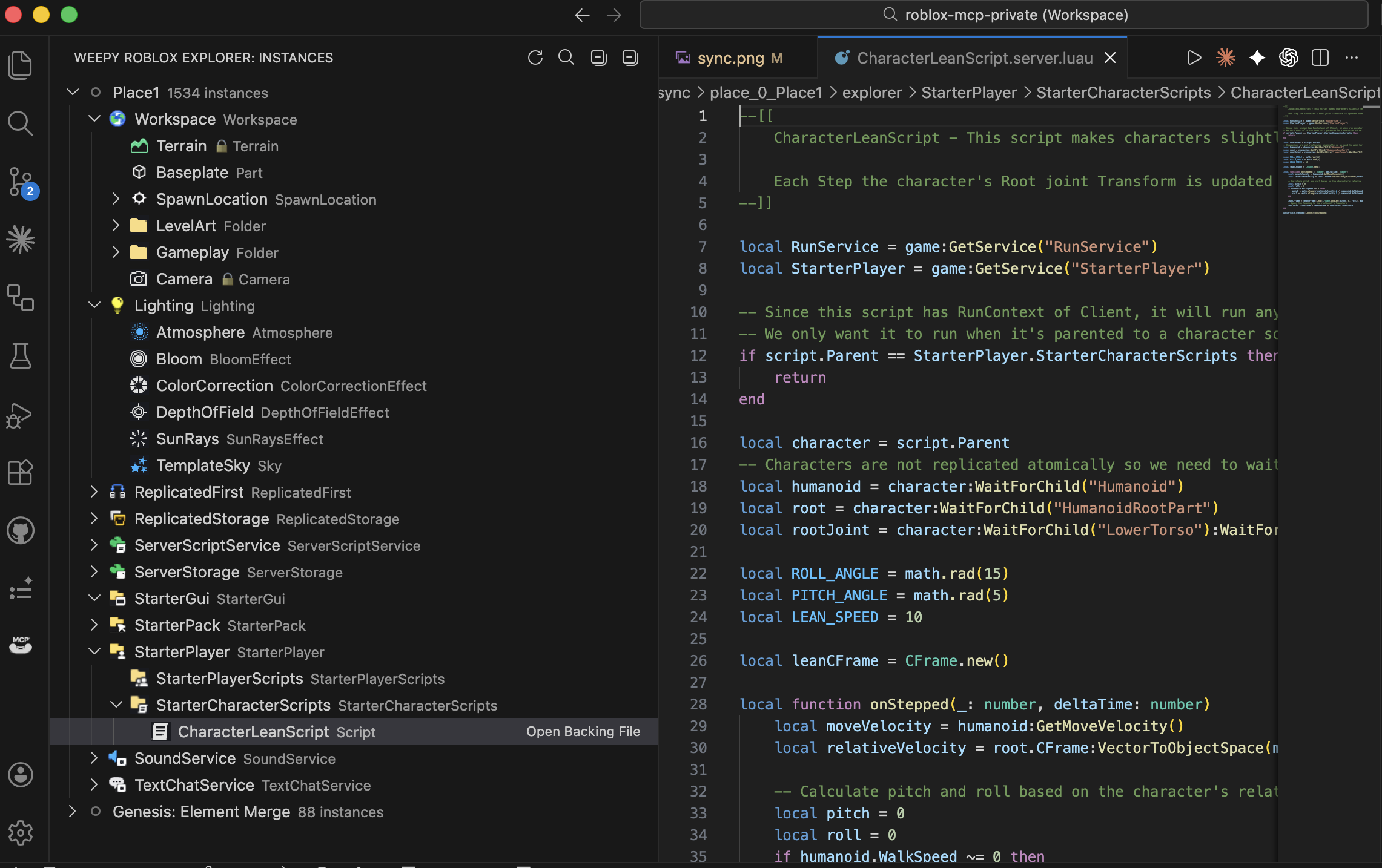
Why Use Explorer
The sync files alone are enough for the AI to understand the full project context, but when humans navigate manually, file paths alone don’t reveal the structure clearly. Explorer re-presents the same sync data in the same hierarchy as Roblox Studio, which makes the following easier.
- See at a glance which service/instance a script lives under
- Quickly find instances across services by name or path
- Check sync status (modified / studio / conflict) per file
- Edit property values without switching to Studio
Requirements
- VSCode 1.85+ or Antigravity
- Roblox MCP installed with Sync active (Basic or Pro)
weppy-project-sync/place_*/.sync-meta.jsonpresent under the project root (created by Sync)
Explorer works by reading sync files from disk, and additionally reflects real-time sync status and direction info when the local MCP server is running.
Installation
Search for WEPPY Roblox Explorer in the Extensions sidebar (Ctrl+Shift+X / Cmd+Shift+X) in VSCode or Antigravity, and click Install.
Marketplace direct links:
Antigravity is VSCode-based and uses the same extension.
Navigating the Instance Tree
After installation, a WEPPY Explorer view is created in the VSCode Activity Bar, and it automatically discovers the sync directory from the project root.
- Service roots: Synced services like
Workspace,ReplicatedStorage, andServerScriptServiceappear at the top level. - Roblox class icons: 200+ Studio icons automatically switch between dark/light themes.
- Multi-place: When multiple Places are synced, each Place has a separate tree root.
- Auto-refresh: The tree is refreshed automatically with a 500ms debounce when sync files change.
- Sync status badges:
modified,studio, andconflictstates are shown next to icons so you can spot changes and conflicts instantly.
Clicking an item in the tree opens the file backing that instance (.server.luau, .client.luau, .module.luau, .props.json, etc.) directly. The right-click menu lets you copy the instance path in game.Workspace.Part format, or reveal the file’s location in the default VSCode Explorer.
Property Panel
Select an instance in the Explorer tree and run the Open Properties command to open a panel that looks like Studio’s Properties window. You can view and edit properties by group without directly editing the .props.json file.
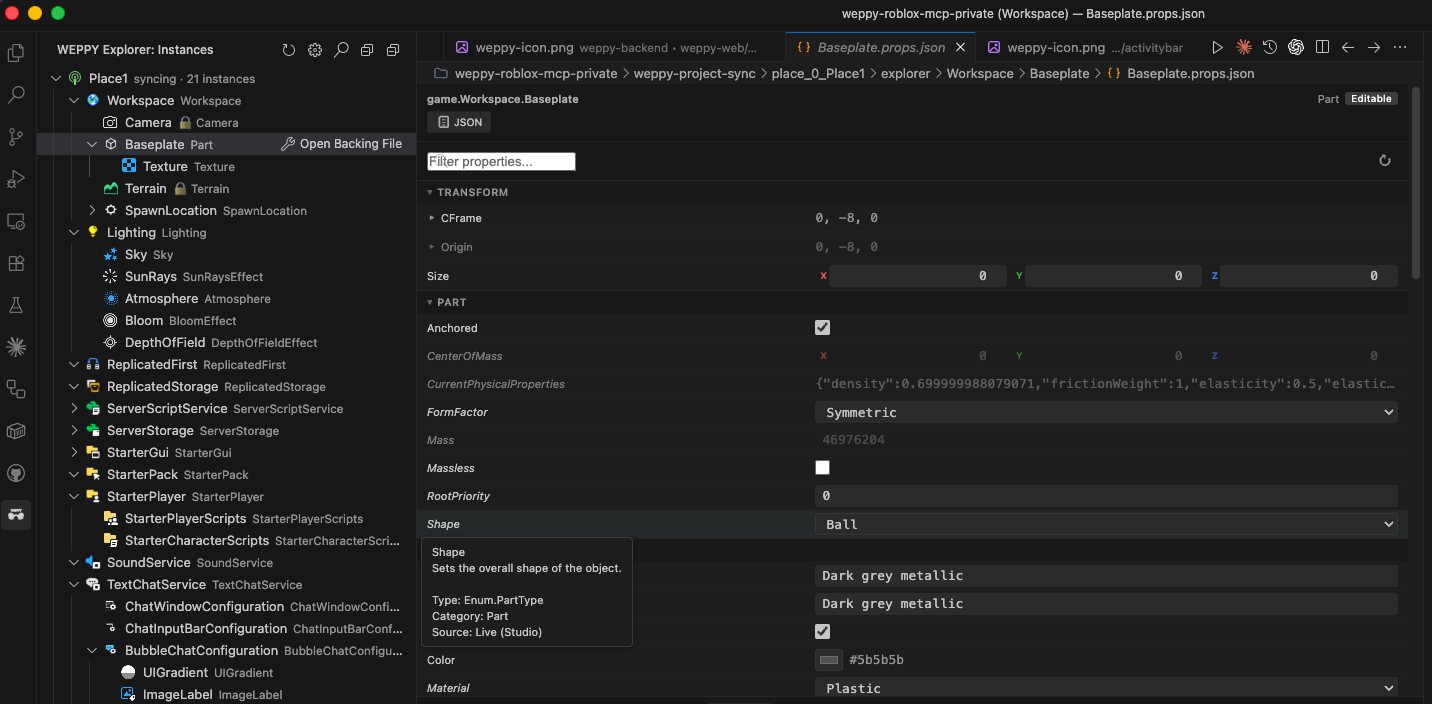
- Group display: Properties are organized in the same categories as Studio — Appearance, Behavior, Data, Part, Transform, etc.
- Type-aware editors: Input widgets are provided for each property type: number, string, Boolean, Color, Vector3, Enum, etc.
- File-based editing: Changes are saved to the instance’s
*.props.jsonfile and reflected in Studio via Sync’s reverse path (Pro, bidirectional mode required). - Custom editor registration: Opening a
.props.jsonfile directly automatically launches the Property Panel instead of the default editor.
To have the Property Panel open automatically, set robloxExplorer.propertyPanel.autoOpen to true in settings.
Instance Search
Use the WEPPY Explorer: Search Instances command (the icon at the top of the view, or the Command Palette) for a QuickPick-based search across all services.
- Quickly find instances by partial name match
- Focus jumps to the matching item in the tree when a result is selected
- Searches across per-place namespaces when multiple Places are synced
Settings
| Setting | Default | Description |
|---|---|---|
robloxExplorer.mcpBaseUrl | "" | Local MCP HTTP base URL. If empty, tries http://127.0.0.1:3002 then http://127.0.0.1:3003. |
robloxExplorer.syncRoot | "" | Absolute path to the weppy-project-sync root. If empty, auto-discovers from workspace folders. |
robloxExplorer.hidePropsFiles | false | Hides sync files (.props.json, _tree.json, .value.json) in the default VSCode Explorer. |
robloxExplorer.autoRefresh | true | Auto-refreshes the tree when sync files change. |
robloxExplorer.showSyncStatus | true | Shows sync status badges on tree items. |
robloxExplorer.followFocusCue | false | Auto-expands the tree and opens related files based on an external focus cue file. |
robloxExplorer.propertyPanel.autoOpen | false | Automatically opens the Property Panel when an instance is selected in the tree. |
Commands
| Command | Description |
|---|---|
WEPPY Explorer: Refresh | Manually refresh the instance tree |
WEPPY Explorer: Search Instances | Search for instances across all services |
WEPPY Explorer: Open Backing File | Open the backing file for the selected instance |
WEPPY Explorer: Open Properties | Open the Property Panel for the selected instance |
WEPPY Explorer: Copy Instance Path | Copy the full instance path (e.g., game.Workspace.Part) |
WEPPY Explorer: Reveal in Explorer | Show the file location in the default VSCode Explorer |
WEPPY Explorer: Collapse All | Collapse all tree nodes |
WEPPY Explorer: Open Settings | Open the Explorer settings page |
Troubleshooting
- Tree is empty: Check that the
weppy-project-sync/place_*directory exists and that Sync has completed at least one Full Sync. If needed, setrobloxExplorer.syncRootmanually. - Sync status not showing: Confirm the local MCP server is running, and try explicitly setting
robloxExplorer.mcpBaseUrl. - Property Panel won’t open: If a
.props.jsonfile opens in the default editor, right-click the file and select Reopen Editor With… → WEPPY Property Panel. - Icons broken: Re-select your VSCode theme or restart the window to refresh the icon cache.