How to install the plugin that connects Roblox Studio to the AI agent.
Automatic Installation (Recommended)
If the MCP server installation is complete, the plugin is installed automatically. No separate download or file copying is needed.
How It Works
- The first time the MCP server runs, it automatically places the plugin file (
WeppyRobloxMCP.rbxm) in Roblox Studio’s Plugins folder. - When Roblox Studio starts, the WEPPY button appears in the Plugins tab.
Connecting
- Open any project in Roblox Studio
- Click the top Plugins tab → WEPPY

- Click the Connect button in the plugin window
- When “Connected” status is shown, the connection is complete
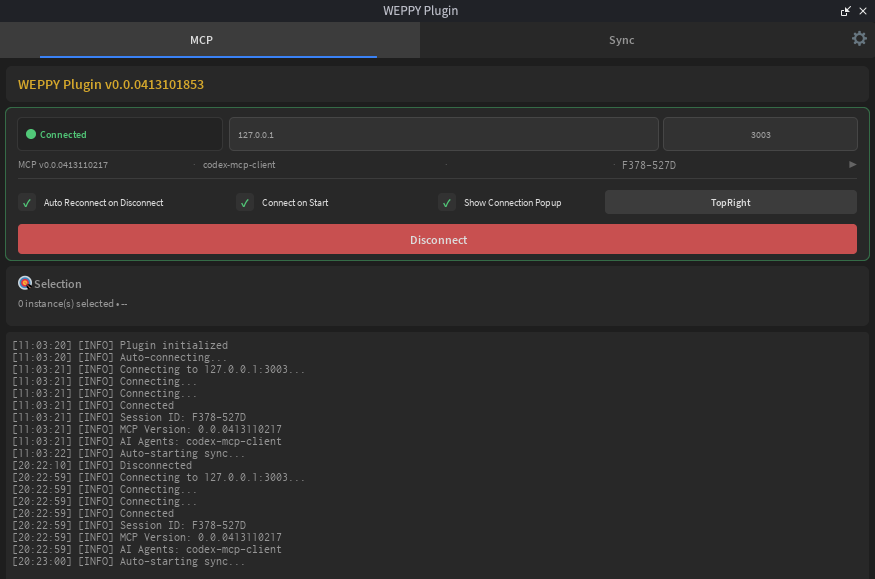
If automatic installation doesn’t work, proceed with the manual installation below.
Manual Installation
Use this when automatic installation doesn’t work, or when you need to install a specific version directly.
1. Download the Plugin
- Open GitHub Releases
- Download
weppy-roblox-mcp-v{version}.zip - Extract the ZIP — it includes the
roblox-plugin/WeppyRobloxMCP.rbxmfile
2. Install the Plugin
- Launch Roblox Studio
- Click the Plugins tab in the top menu
- Click the Plugins Folder button
- Copy
WeppyRobloxMCP.rbxmfrom the extracted folder into the opened Plugins folder - Restart Roblox Studio
3. Verify Installation
After restarting, the WEPPY button appears in the Plugins tab.
4. Connect
Click the Connect button following the same steps in the “Connecting” section above.
Settings (Optional)
Click the settings button in the top-right of the plugin to change various options.
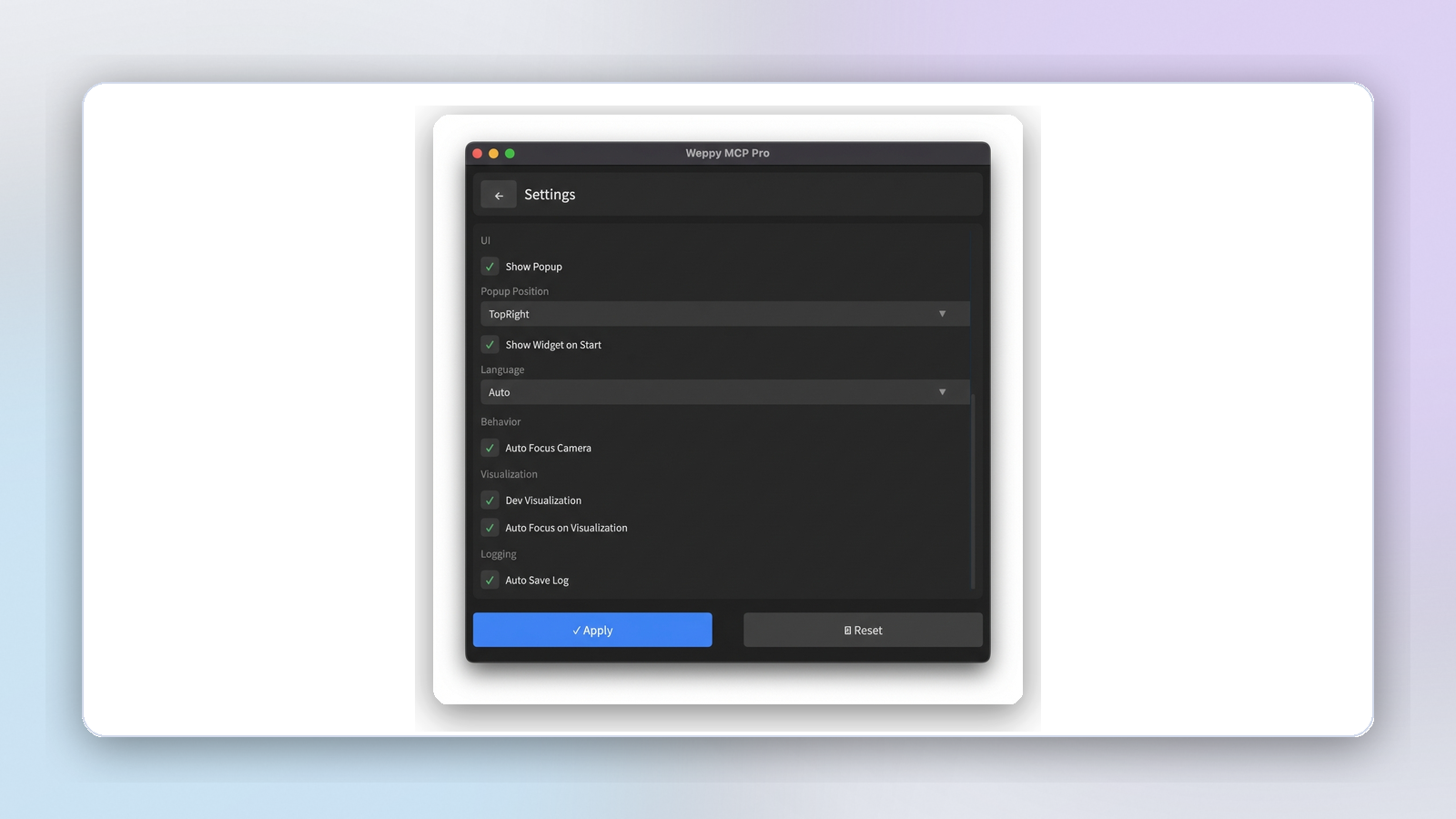
- Auto Connect: Automatically connect to the MCP server when Studio starts
- Auto Reconnect: Automatically retry when the connection is lost
- Auto Camera Focus: Automatically move the camera to newly created objects
- Language: Change the plugin UI language
Tier Notes
- Basic installs the same plugin package and operates under the Basic policy (Studio → Local one-way Sync).
- Activating a Pro subscription license enables bidirectional Sync and a broader range of advanced tool features.
Troubleshooting
Plugin Not Visible
- Fully quit Roblox Studio and restart it
- Check that the file was properly copied to the Plugins folder
- Confirm the
.rbxmfile is not corrupted
Connection Fails
- Confirm the MCP server is running in your AI app
- Click the Connect button in the plugin again
- Check whether port 3002 is in use by another program
Connection Drops Frequently
- Enable the Auto Reconnect option in settings
- Restart your AI app