
The workflow where AI agents build Roblox in-game UI to match your game’s style, or analyze existing UI and suggest improvements you can review from the dashboard.
Overview
When you ask the AI to “build me a UI”, the following flow runs automatically.
- Gather requirements — At the start of a new UI task, the AI uses guided questions to clarify the purpose, the screen, and the target devices.
- Compose the UI — Based on the captured requirements, the AI creates, updates, and removes in-game menus, HUDs, buttons, labels, image panels, and related UI.
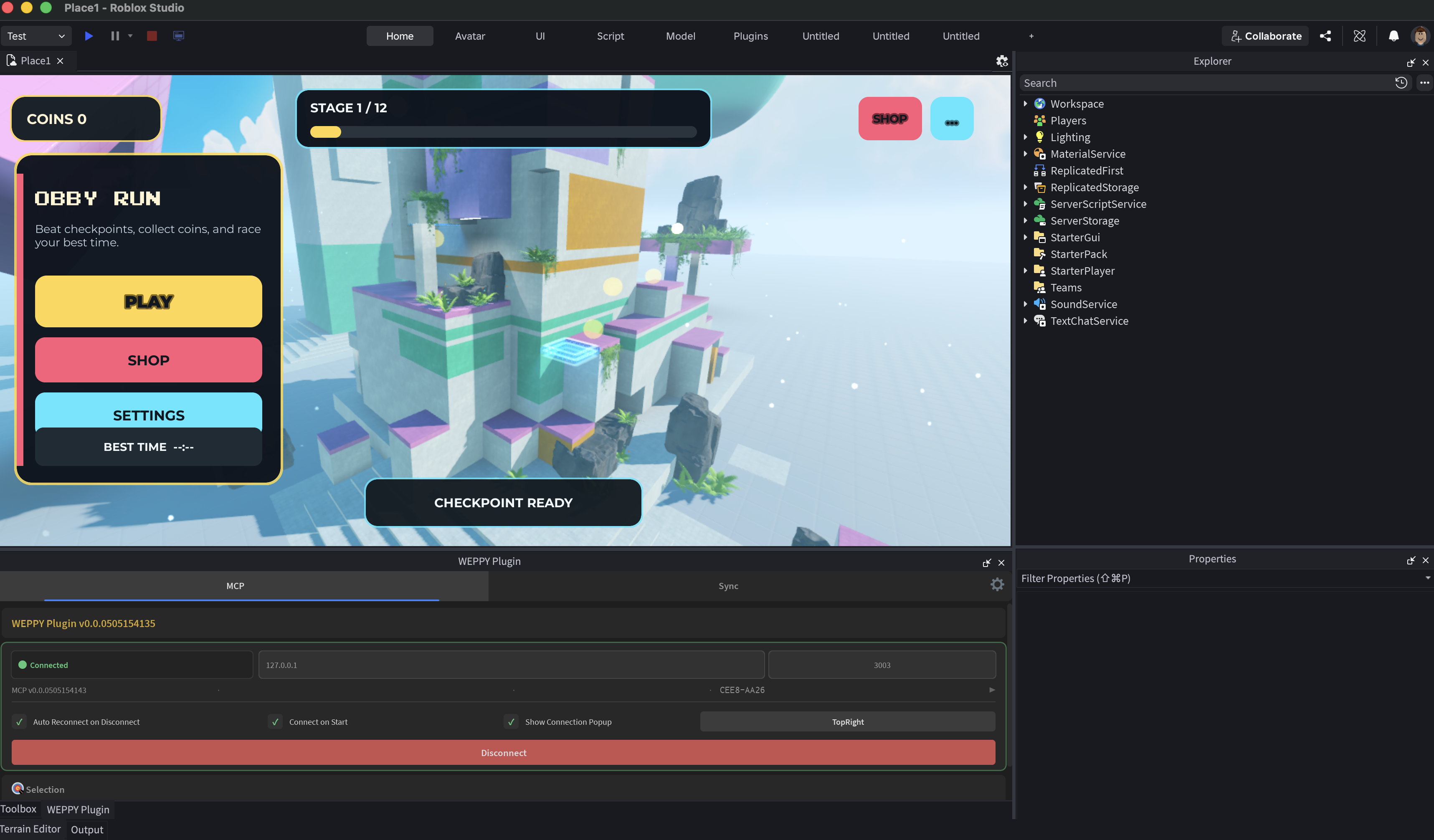
- Confirm the result — The current screen can be captured so you can verify the output directly.
- Surface improvement suggestions — Items like touch target size, text contrast, and safe zones are inspected, and improvement suggestions are surfaced to the AI.
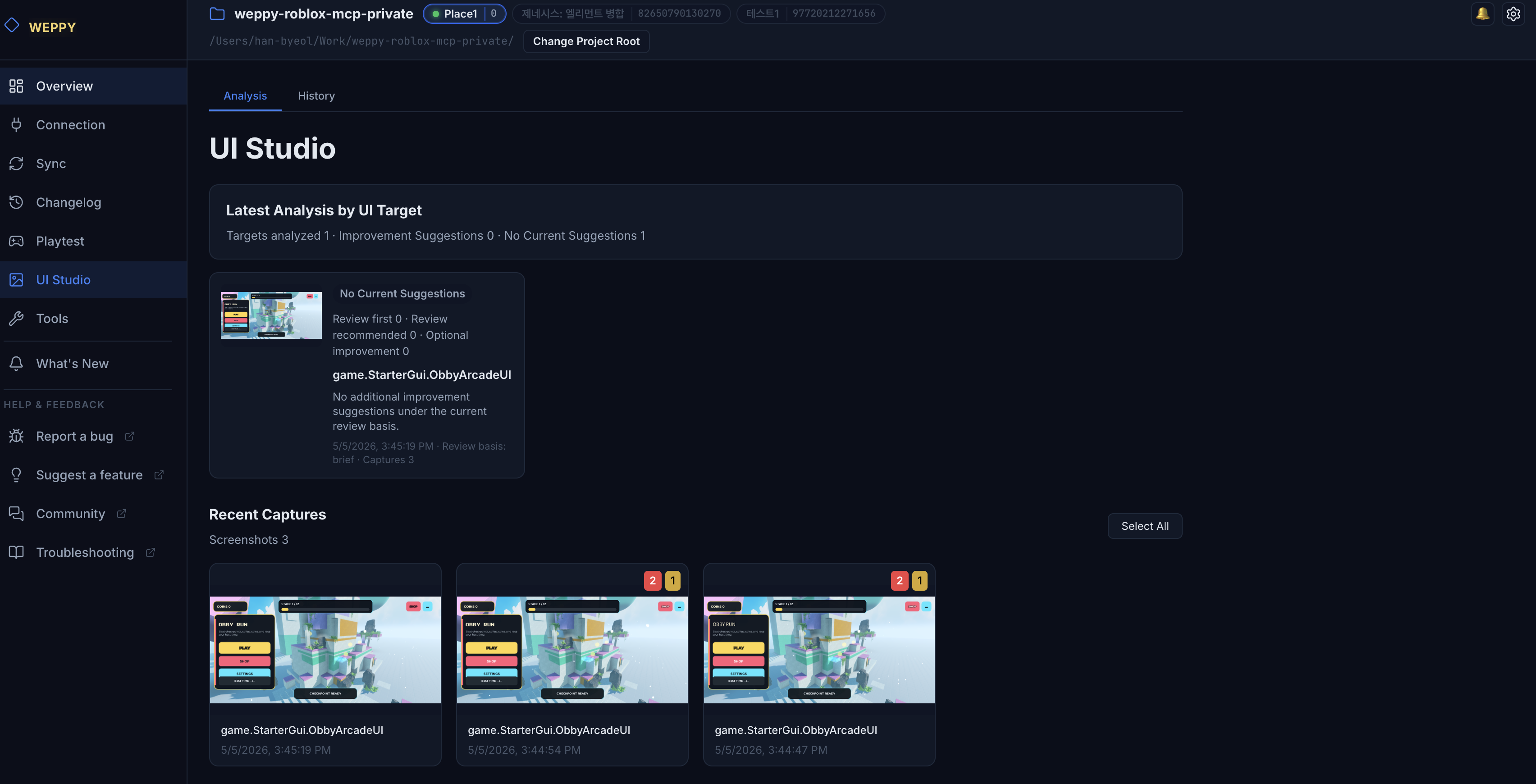
The dashboard’s UI Studio page is where you review the outcomes of this flow (request history, captured screens, suggested improvements) in one place.
How to use
1. Ask in natural language as usual
Ask the AI agent the way you normally do — no special commands required.
Build me a main menu UI for mobile landscape with a centered start buttonIf anything is missing, the AI follows up with guided questions before building the screen UI.
2. Review results and inspections in the dashboard
The dashboard’s UI Studio page is split into two tabs.
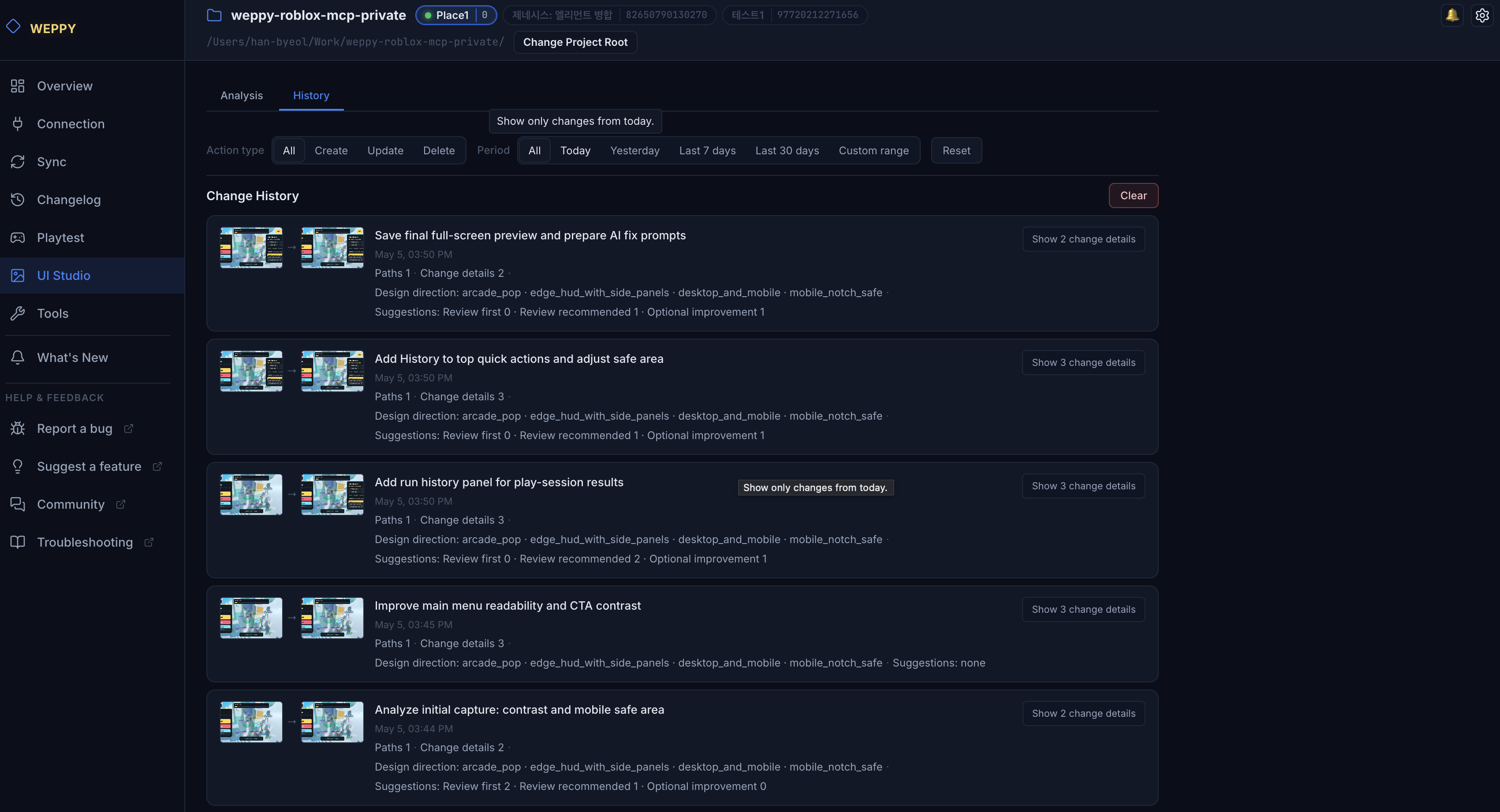
History tab
A chronological list of UI requests handled by the AI, with the captured screen and the applied changes for each entry.
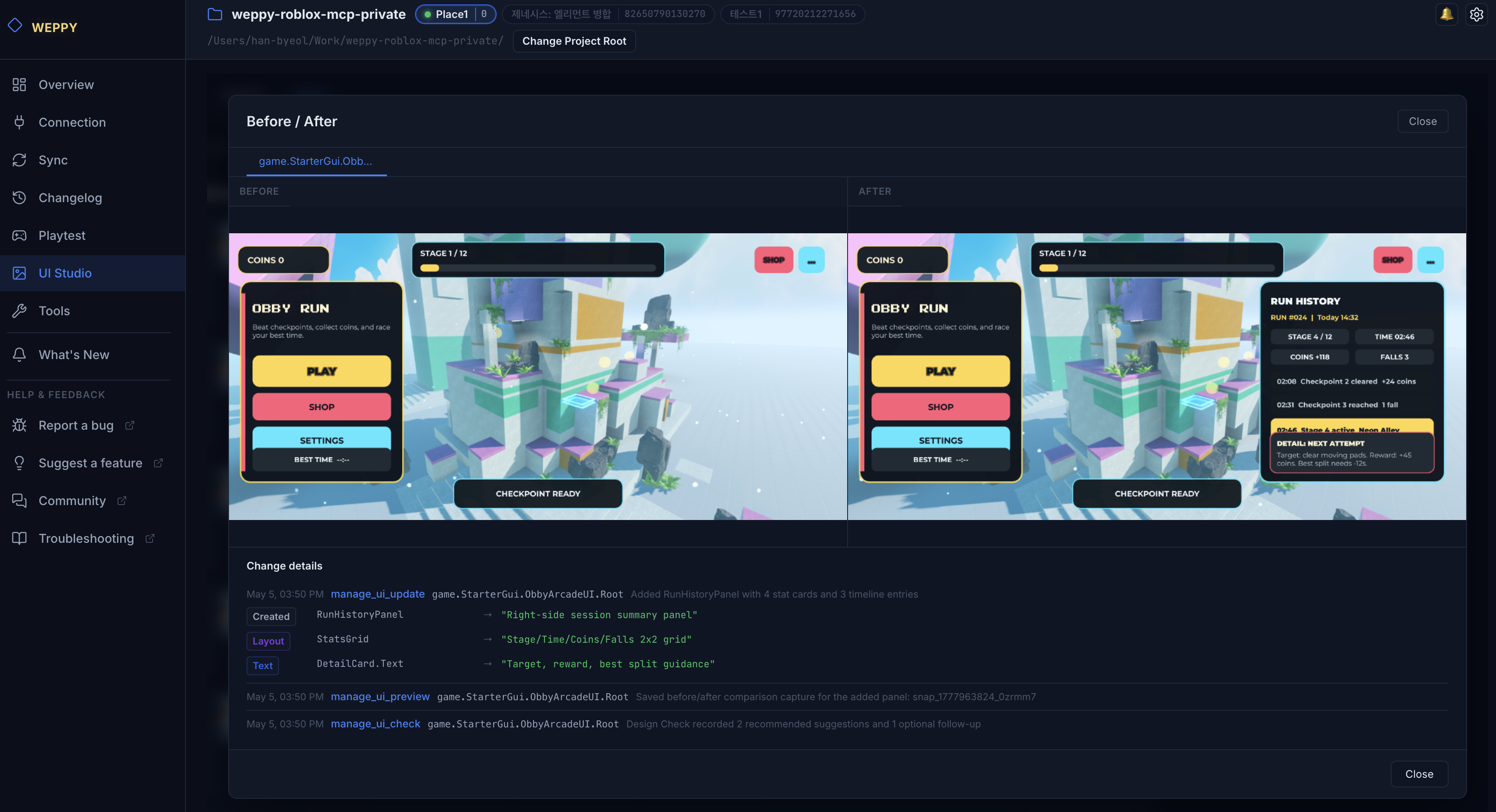
Open an entry to compare the before/after captures and review the recorded change details for the same UI target.
Analysis tab
A summary of inspection results and improvement suggestions surfaced to the AI (touch targets, contrast, safe zones, etc.), grouped per item.
Click any card to open the detail view; suggested improvements appear per item alongside the captured screens.
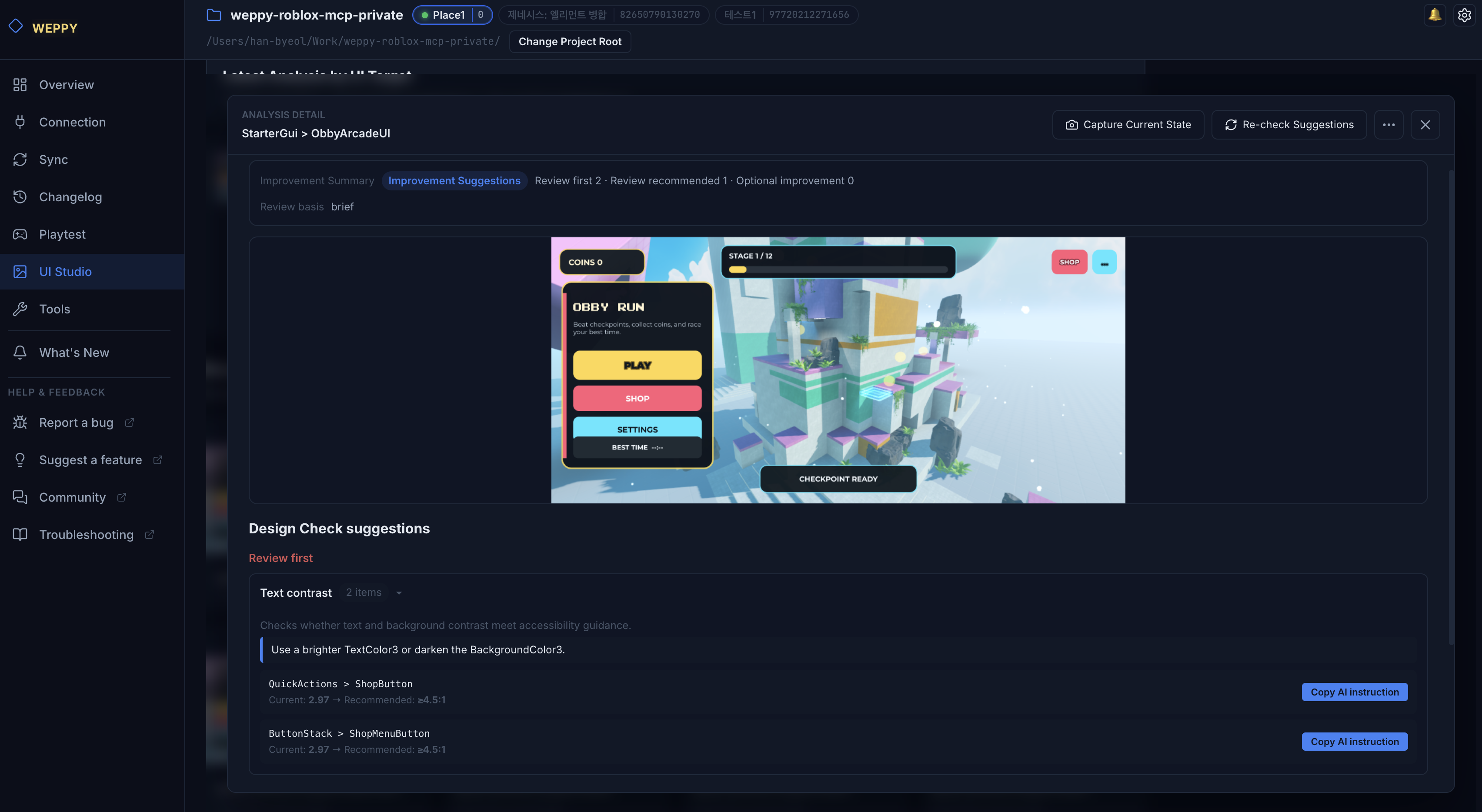
Use Re-check Suggestions to recompute improvement suggestions for the same target. It refreshes the current analysis without saving a new screenshot.
Common use cases
Track a UI change
Show me the result of the main menu I just addedOpen the most recent entry in the History tab and review the captured result alongside the applied changes.
Iterate on improvement suggestions
Apply the touch target suggestion you just surfaced and rebuild itForward the item you saw in the Analysis tab back as a natural-language request and the AI will apply it.
Notes
- UI Studio data is stored on disk per project. Manage retention from the dashboard at Settings → Data & History → UI Studio.
- The dashboard lets you revisit captured results and refresh Design Check suggestions.
- Captures run in Edit mode. Captures during an active playtest are not supported because of a Roblox platform limitation.