
Save generated images, RBXM files, and Creator Store assets in Asset Library, then carry them through Roblox upload and Place application.
From Generated Image to Place
When you need an icon, Decal, or UI image, the manual process usually means saving a file, uploading it in Creator Dashboard, copying the asset ID, then pasting it into a Studio property. WEPPY Assets keeps that work in one request.
"Create a gem icon for the shop button, upload it to Roblox, then apply it to the ShopButton image in the Lobby Place"The usual path is:
- The AI creates or prepares the needed image or file.
- The file is saved to the current Place Asset Library or the shared Asset Library.
- WEPPY runs the Roblox Open Cloud upload.
- The uploaded asset URI is applied to Studio properties such as ImageLabel, Decal, or Texture.
Saved assets can be reused in the same Place, or stored as shared assets for another Place.
Asset Library
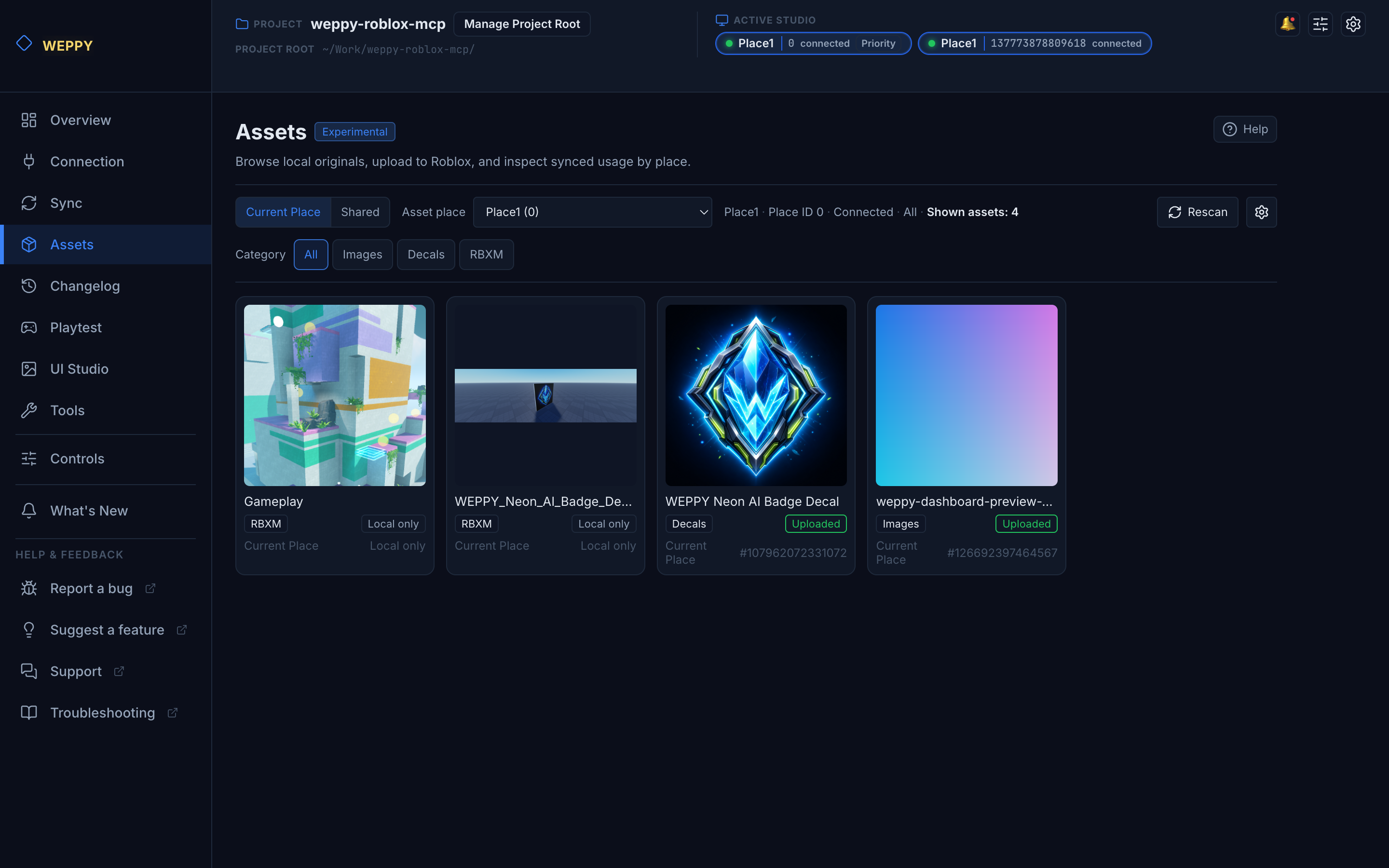
The Dashboard Assets page shows the local Asset Library.
- Separate current Place assets from shared assets.
- Review Images, Decals, and RBXM files.
- Edit asset names and descriptions, then check upload status.
- After Roblox upload, copy the asset ID and Studio-ready URI.
When you want to keep a Studio selection as an RBXM file, use Save Selection to Library from the WEPPY Plugin Assets tab. It saves the selected Studio object into the local Asset Library so it can be inserted again later, including in another Place.
Reuse Assets Across Places
When several Places are open at once, separate Place-specific assets from shared assets. Keep a Lobby-only button image as a current Place asset, but save icons or RBXM files that should also be used in Game or Shop as shared assets.
Create a gem icon for the shop as a shared asset and upload it to Roblox.
Apply that asset URI to ShopButton in studio-1 Lobby and RewardPanel in studio-2 Game.
Naming the Studio ID tells the AI exactly where to apply the uploaded asset after Open Cloud returns the URI. See the Multi-Place Work guide for the multi-Studio setup.
Assets & Object Presentation
Included Tools
| Tool | Description |
|---|---|
manage_assets | Creator Store search/insert, RBXM export/import, thumbnail generation |
manage_open_cloud_assets | Roblox Open Cloud upload, update, and status checks |
manage_tween | Create, play, pause, and cancel tweens |
manage_animation | Load, play, stop animations, and query tracks |
manage_audio | Play/stop/pause sounds, set audio listener |
manage_effects | Emit, clear, and toggle particle effects |
manage_physics | Register collision groups, set collidability |
Key Workflows
Building a Scene with Assets
"Search for a 'tree' model in the Creator Store and place 3 of them in Workspace"Use manage_assets’s search_insert to search and insert in one step.
Generated Image Upload and Application
"Create a red cracked texture for the boss health bar, upload it to Roblox, then apply it to the BossHud ImageLabel"Save the image file in Asset Library, then upload it through manage_open_cloud_assets or the Dashboard upload action. After upload, apply the returned rbxassetid://... URI to the Studio UI or Decal property.
Save a Studio Selection as an RBXM Asset
"Save the currently selected treasure chest model to Asset Library and generate a thumbnail"Use the Plugin Assets tab or manage_assets RBXM export actions to save the current selection as a local asset. The saved RBXM can be inserted into another Place later.
Interactive Presentation
"Create a tween that opens a door over 3 seconds when clicked"Use manage_tween’s create to define the tween and play to run it. Simultaneously add a door-opening sound effect with manage_audio’s play.
Particles + Sound Combination
"Play an explosion particle effect along with a sound effect when the boss appears"Use manage_effects’s emit to emit particles and manage_audio’s play to play the sound simultaneously.
Action Reference
Manage Assets
| Action | Description |
|---|---|
insert | Insert a model by asset ID |
info | Get asset metadata |
search | Search the Creator Store |
search_insert | Search and insert the first match |
insert_free | Insert a free model |
insert_package | Insert a package |
export_selection_rbxm | Save the current selection as an RBXM asset |
export_path_rbxm | Save a Studio path as an RBXM asset |
import_rbxm | Insert an RBXM from Asset Library into Studio |
generate_thumbnail | Generate a thumbnail for a selection or asset |
Manage Open Cloud Assets
| Action | Description |
|---|---|
credential_status | Check Open Cloud API key and Creator setup status |
capabilities | Check upload capability by category |
upload | Upload a local asset file to Roblox |
update | Update a supported Roblox asset category |
info | Read Roblox asset information |
operation_status | Check Open Cloud operation status |
Manage Tween
| Action | Description |
|---|---|
create | Create a tween with target properties |
play | Play a created tween |
pause | Pause a running tween |
cancel | Cancel a tween |
Manage Animation
| Action | Description |
|---|---|
load | Load an animation onto a Humanoid/AnimationController |
play | Play a loaded animation track |
stop | Stop a playing animation |
get_tracks | List all loaded animation tracks |
Manage Audio
| Action | Description |
|---|---|
play | Play a sound (creates a Sound if needed) |
stop | Stop a playing sound |
pause | Pause a playing sound |
resume | Resume a paused sound |
set_listener | Set audio listener type and target |
Manage Effects
| Action | Description |
|---|---|
emit | Emit particles from a ParticleEmitter |
clear | Clear all particles |
toggle | Enable or disable an effect |
Manage Physics
| Action | Description |
|---|---|
register_group | Register a collision group |
set_collidable | Set whether two groups can collide |
get_groups | List all registered collision groups |
World Environment
Included Tools
| Tool | Description |
|---|---|
manage_lighting | Configure Lighting, Atmosphere, Sky, and time of day |
manage_terrain | Generate/edit terrain and manage voxel data |
spatial_query | Raycasting, ground detection, placement validation, heightmaps |
manage_camera | Query camera info, move focus, suggest views, capture Edit-mode viewport screenshot |
Key Workflows
Setting World Atmosphere
"Change the mood to dusk: orange sky, increase fog density, set time to 18:00"Use manage_lighting’s time to set the time of day, atmosphere to adjust fog, and sky to change sky color.
Building Terrain
"Create a grassy hill with radius 200 in the center of the map and fill the surrounding area with water"Use manage_terrain’s fill_ball to create the hill and fill_block to fill the surrounding water area.
Placement Validation
"Find a flat area where I can place this building"Use spatial_query’s find_flat to locate a suitable area, check_placement to confirm no collisions, then manage_camera’s focus_position to visually verify the result.
Action Reference
Manage Lighting
| Action | Description |
|---|---|
lighting | Set Lighting service properties |
atmosphere | Set Atmosphere properties |
sky | Set Sky properties |
terrain_props | Set Terrain water/visual properties |
time | Set time of day |
Manage Terrain
| Action | Description |
|---|---|
fill_block | Fill terrain in a block shape |
fill_ball | Fill terrain in a sphere shape |
fill_cylinder | Fill terrain in a cylinder shape |
fill_wedge | Fill terrain in a wedge shape |
clear_region | Clear terrain in a region |
clear_bounds | Clear terrain within bounds |
replace_material | Replace material in a region |
colors_get | Get material colors |
colors_set | Set material colors |
read_voxel | Read a single voxel |
read_voxels | Read voxels in bulk |
write_voxels | Write voxels in bulk |
generate | Generate procedural terrain |
smooth | Smooth terrain |
Spatial Query
| Action | Description |
|---|---|
raycast | Single raycast |
find_ground | Find ground position below a point |
check_placement | Check if placement is collision-free |
multi_raycast | Batch multiple raycasts |
scan_area | Generate a heightmap of an area |
find_flat | Find a flat area for construction |
find_spawn | Find a suitable spawn position |
analyze_walkable | Analyze walkable area grid |
spatial_map | Get positions of all BaseParts |
find_space | Find empty space for an object |
bounds | Get the bounding box of an instance |
snap_grid | Snap a position to a grid |
collision | Check AABB collision |
Manage Camera
| Action | Description |
|---|---|
info | Get camera position, rotation, FOV, and viewport size |
focus_path | Focus camera on an instance by path |
focus_position | Focus camera on a position |
suggest | Get a suggested camera view for a target |
screenshot | Capture the current Studio Edit-mode viewport as a PNG image (Edit mode only) |