
AI agents can run a Roblox Studio Playtest and verify client UI, interaction results, and server state in one test record.
Overview
Use a structured Test Session through manage_studio for ordinary runtime verification. The AI runs a JSON-compatible scenario in order and records each step’s target, expected and observed values, duration, and errors. It does not inject test code as a Script.
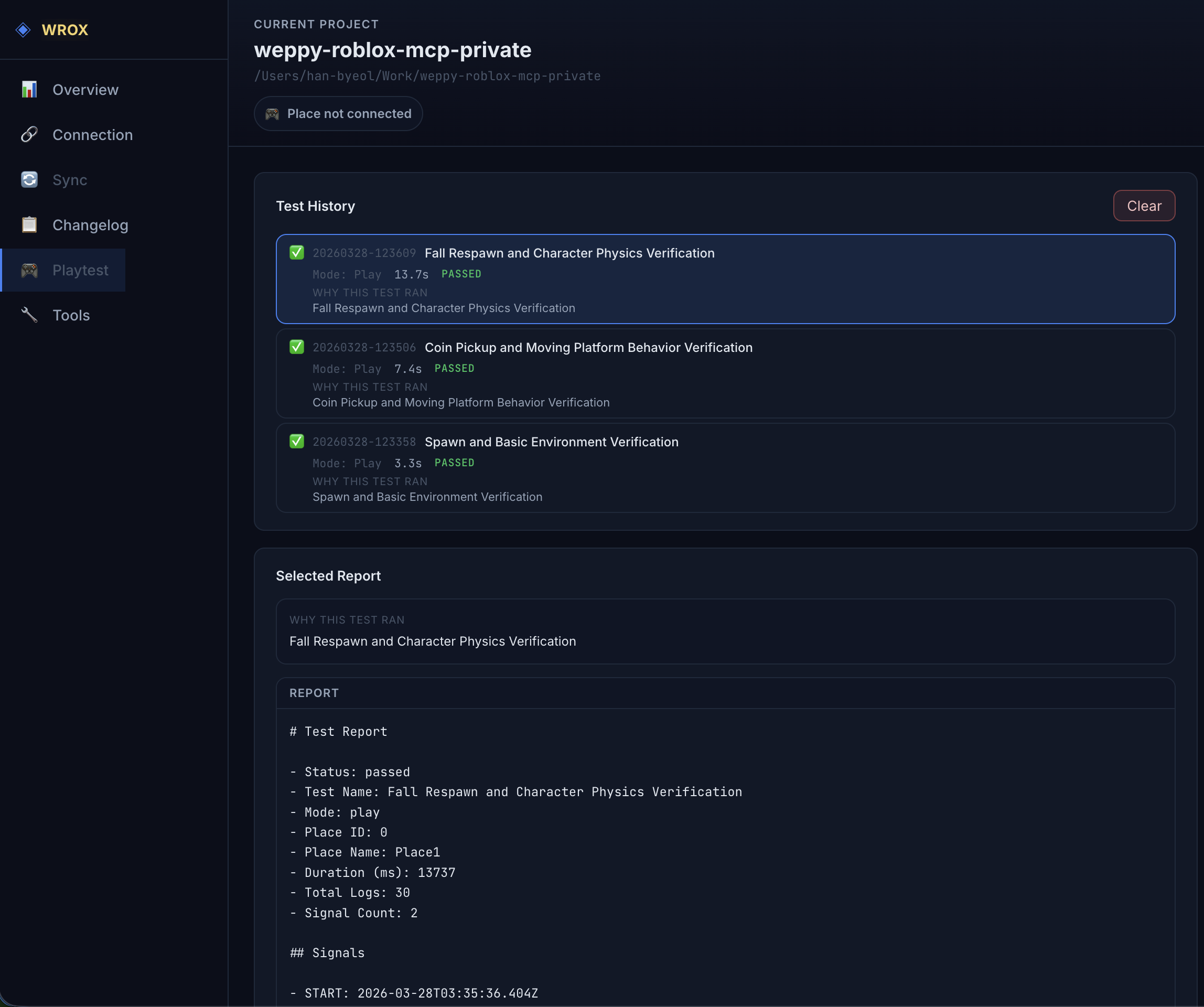
The Dashboard Playtest page has separate Test Values and Automated Test Results workspaces. Automated Test Results is a viewer for stored results; it does not control an active test or recalculate its outcome.
Observe and change test values
Use the Test Values tab to register real Studio values in reusable test profiles, observe their current values, and apply inputs while Play or Run is active.
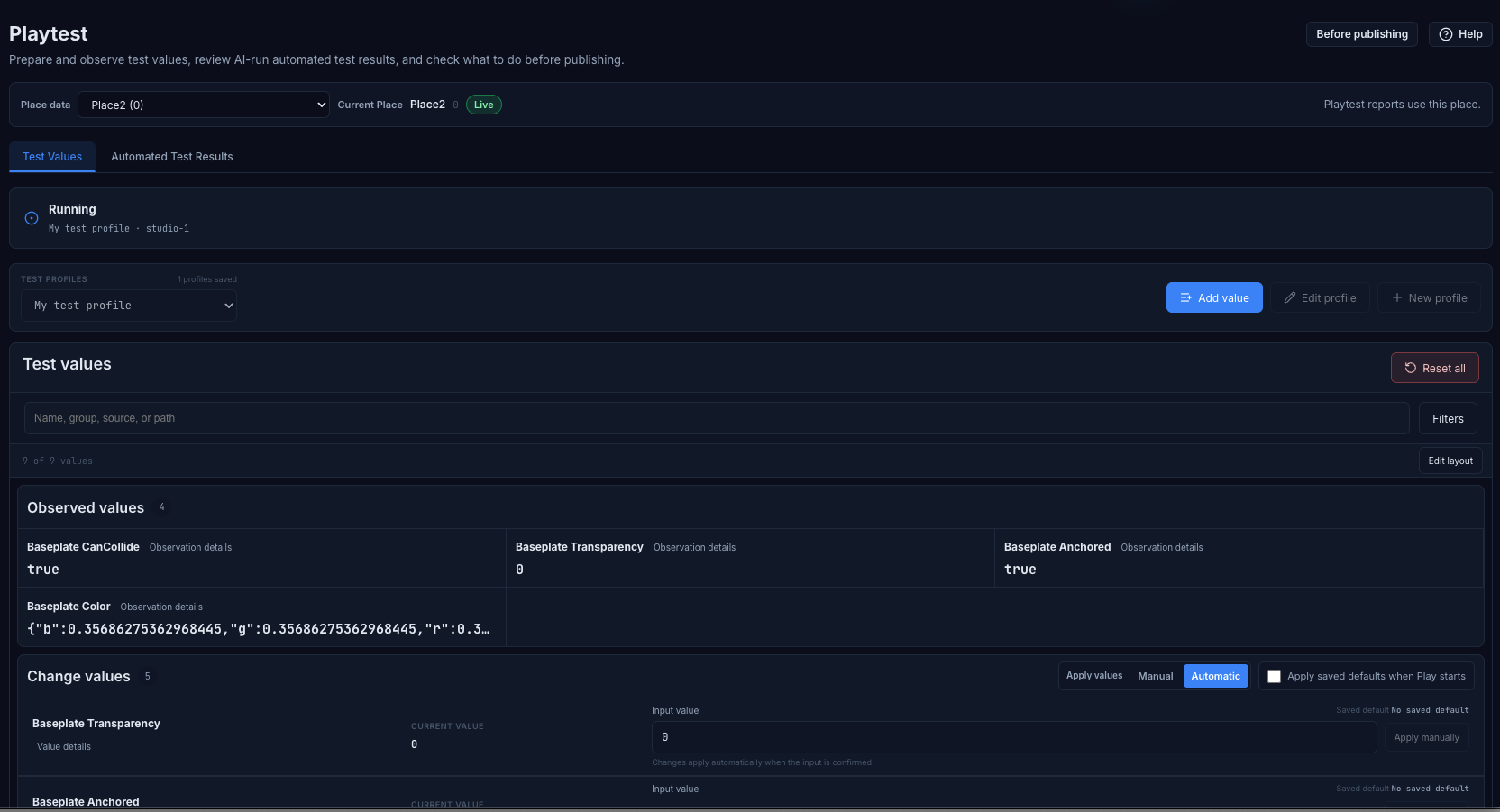
In Add value, choose Studio selection to read the current Explorer selection and register its Attributes, Value, or supported properties without adding test code. Use a registered Test Adapter for internal state that cannot be selected directly.
After Play or Run starts, Observed values shows read-only live values. Under Change values, apply an input manually or automatically when the input is confirmed. Inputs remain separate from saved defaults. Turn on Apply saved defaults when Play starts to apply the profile’s saved defaults at the start of the next Play session.
Default verification method
A structured Test Session follows these rules:
- It starts in Play mode (F5) when no mode is specified.
- v1 supports one client and sequential steps.
- Use Play mode for UI, input,
LocalScript,PlayerGui,LocalPlayer, or general player behavior. - Use Run mode (F8) only for server, world, or physics checks that need no client observation.
- One session can verify client UI, interaction, and server results separately.
For example:
"In Play mode, verify that the shop UI appears, click the purchase button
with real input, and then verify the purchase result on the server."
The AI starts the session with test_session_start and reads progress and step evidence with test_session_status. Use test_session_stop to cancel a running session.
Verify UI and input
The Client Test Agent checks the running game’s PlayerGui.
wait_for_guiwaits for the target UI.snapshot_guirecords names, classes, visibility, position, size, ZIndex, and text summaries.input_clicksends VirtualInput to a button inside the viewport.- Input delivery and
GuiButton.Activatedobservation are recorded as separate evidence. - A separate server step can verify the resulting game state.
Play-mode viewport pixel screenshots are not supported in structured session v1. Use semantic UI snapshots and interaction evidence for Play-mode checks. manage_camera.screenshot is available only in Edit mode.
Read results in Dashboard
Test History shows structured sessions alongside existing Raw Luau records.
| Field | Description |
|---|---|
| Execution kind | Structured or Raw Luau |
| Status | passed, failed, timed_out, cancelled, or insufficient_evidence |
| Mode | Play or Run |
| Duration | Total test duration |
| Evidence summary | Server/client agent counts and the main failure or limitation |
Select a structured report to review:
- the overall result and reason;
- Server, Client UI, Interaction, and Visual dimensions and whether each is required;
- each step’s target, action, expected value, observed value, evidence, error, and duration;
- Server/Client Agents plus semantic UI and VirtualInput capabilities;
- saved artifacts such as the structured result, Markdown report, and raw log.
Every required evidence dimension must pass before the overall result is passed. A successful server result with missing required client UI or interaction evidence becomes insufficient_evidence. An optional observation failure remains in the record but does not turn successful required checks into a failure.
Manual Playtest control
Use these actions when you only need to control Play/Run state:
| Action | Description |
|---|---|
play_start | Start Play (F5) or Run (F8) mode |
play_stop | Stop the current Playtest |
play_pause | Pause a running Playtest |
play_resume | Resume a paused Playtest |
play_status | Read the current edit, running, or paused state and allowed actions |
"Start the game in Play mode."
"Check the current Playtest state, then stop it."
Structured Session actions
| Action | Description | Main parameters |
|---|---|---|
test_session_start | Validate the scenario and start a background session | scenario, idempotencyKey, Studio selector |
test_session_status | Read state and a bounded page of step evidence | sessionId, stepCursor, stepLimit |
test_session_stop | Request cancellation and teardown | sessionId |
test_session_status returns 20 step evidence entries by default and no more than 50. Use the opaque stepCursor from the response to read the next page.
Raw Luau diagnostics
run_test remains available, but it is not the default for ordinary verification. Choose it explicitly for advanced diagnostics that require a raw script, such as a project-specific Luau assertion.
"Use Raw Luau to inspect ServerScriptService state and save the logs."run_test injects the supplied script into ServerScriptService.__MCP_TestRunner, collects log signals, and cleans up the Playtest and temporary script.
Stored results
Results are stored under {projectRoot}/weppy-project-sync/place_XXXXX/tests/YYYYMMDD-HHmmss/ for the selected Place.
Structured session:
test-result.json   # Canonical overall result and step evidence
test-report.md     # Human-readable summary
test-log.txt       # Logs with server/client origin
test-context.json  # Execution context and replay metadata
Existing Raw Luau records remain readable in their Markdown report and log format and are not converted automatically.
Multi-Place verification
When you change several Places, confirm each Studio ID and Place name on the Dashboard Connection page before making targeted requests.
"In studio-1 Lobby, verify the portal button and click result in Play mode.
In studio-2 Game, verify the destination's server state in Run mode."
A structured session pins the selected Studio target when it starts. It does not move to another Place if the active Studio changes during the run.
Investigate a failure
Select the failed report in Dashboard and start with the overall reason and failed step. Compare expected, observed, error, and the evidence dimension to distinguish a missing UI, undelivered input, server assertion failure, timeout, or unsupported capability.