
Every change the AI agent makes in Roblox Studio is recorded per session, with a change summary, timeline, and Before & After comparison.
Overview
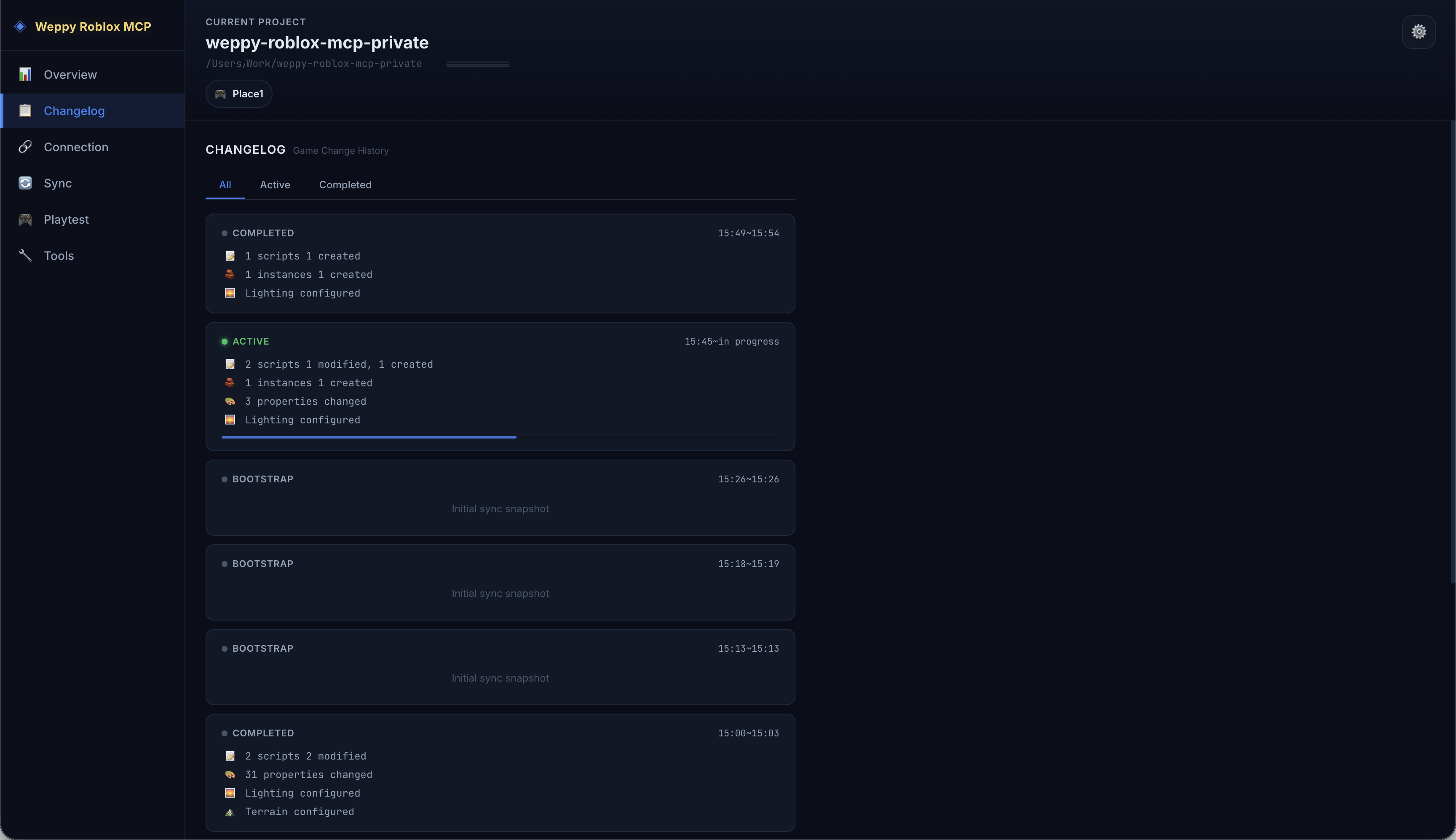
The Changelog tracks the game change history that AI agents perform in Studio. Changes are grouped by session so you can see at a glance what type of changes happened and how many in each session.
Session Card List
The Changelog’s main screen shows a list of session cards.
Session Status
Each session card displays a status:
| Status | Meaning |
|---|---|
| Active | Currently ongoing session (updates in real time) |
| Completed | Finished session |
| Bootstrap | Initial sync session |
Session Summary
Each card shows a per-category count of changes in that session:
- Script — scripts created/modified
- Instance — instances created/deleted/moved
- Property — property changes
- Lighting — lighting/environment changes
- Terrain — terrain changes
- Asset — assets inserted
Filter Tabs
Use the top tabs to filter sessions:
- All — all sessions
- Active — ongoing sessions only
- Completed — finished sessions only
Session Detail View
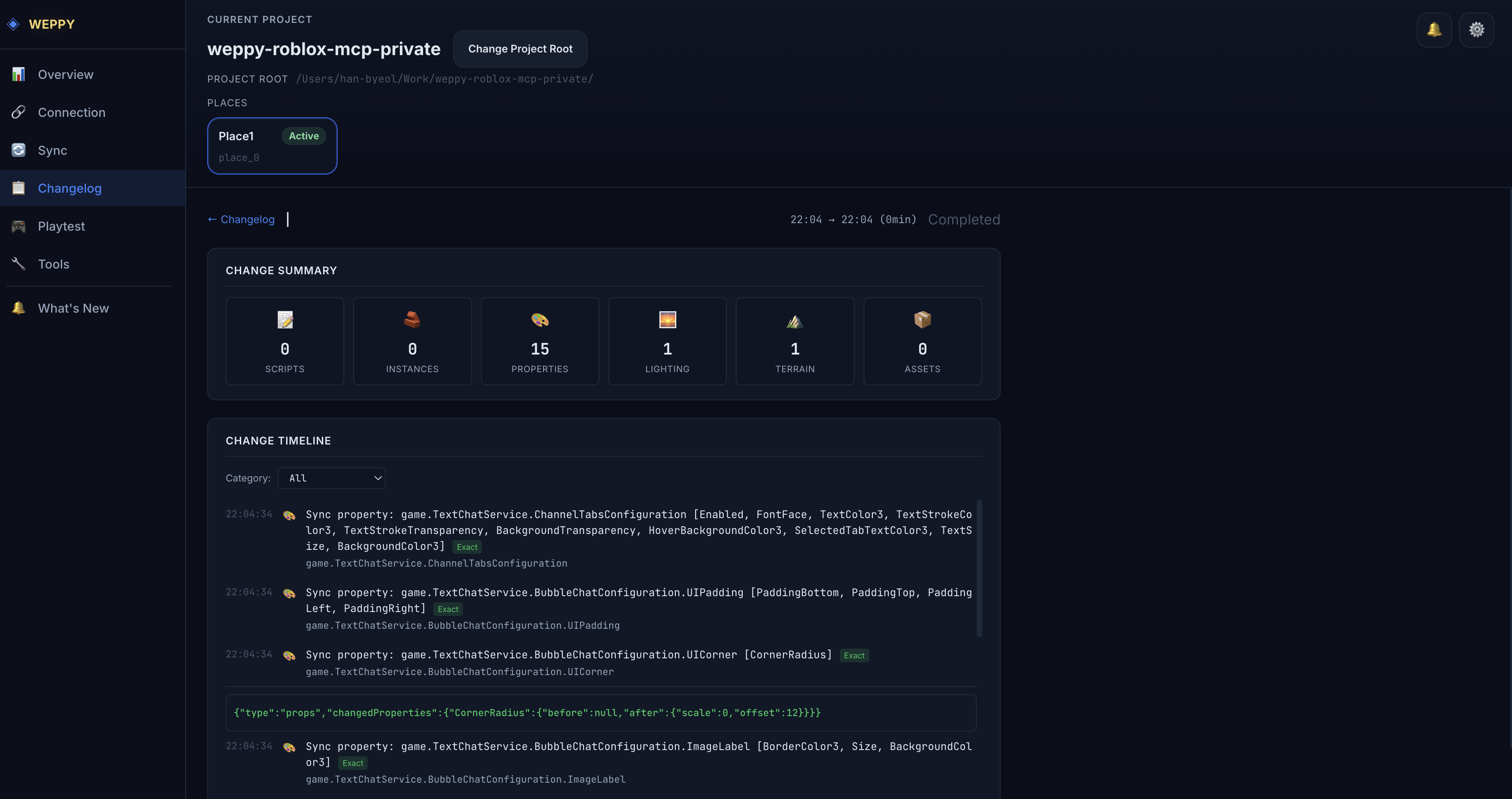
Click a session card to enter the detail view.
Change Summary
Visualizes the session’s changes as 6 category cards:
| Category | Icon | Description |
|---|---|---|
| Scripts | Script | Scripts created/modified |
| Instances | Instance | Instances created/deleted/moved |
| Properties | Property | Property changes |
| Lighting | Lighting | Lighting/environment changes |
| Terrain | Terrain | Terrain changes |
| Assets | Asset | Assets inserted |
Change Timeline
Lists all changes in the session in chronological order.
- Each entry shows a timestamp, change category tag, and target path
- Use the Category dropdown to filter by a specific category
- Click an entry to expand the Before & After comparison view
Before & After
Compares data before and after the change. The level of information provided varies by change type:
| Confidence | Meaning | Example |
|---|---|---|
| exact | Before and after values are precisely recorded | Property change, script edit |
| partial | Only partial information recorded | Compound change |
| after-only | Only the after value exists | New instance creation |
| intent-only | Only the intent is recorded | Deletion, etc. |
Use Cases
Verifying Work
"I want to check which scripts the AI just modified"Filter the Script category in the Active session’s Changelog to see the list of modified scripts and compare the before/after code.
Tracking Changes
"I want to review how Lighting was set up in yesterday's session"Find the session in the Completed tab and filter by the Lighting category to review the change history and configured values.
Debugging Issues
"I need to find out at what point a specific instance was deleted"Filter the Instance category in the timeline and trace delete-type changes in chronological order.
Next Steps
After reviewing changes:
- Run automated validation with Playtest to confirm nothing is broken.
- You can also review the AI’s tool execution history in Tools & Stats.