To use the WEPPY MCP Server in Dola Desktop, register a Custom Connector manually. This guide takes you from prerequisites through a successful connection check.
Dola does not support installing WEPPY AI Agent Plugin from a GitHub marketplace URL. Connect the MCP server first, then upload individual Workflow Skills at the end if you need them.
Before You Start
- Dola Desktop installed and signed in
- Node.js 22 or newer installed (check with
node --version) npxavailable (check withnpx --version)- Roblox Studio installed
You will select Pro and prepare Local computer in step 1. If either option is missing, update Dola and check again. If your account or region does not provide them, Dola cannot run a local MCP Connector.
1. Prepare Dola’s Local Computer
- Start a new Dola chat.
- Change the mode from Fast to Pro.
- Open the device selector and choose Local computer. WEPPY needs this environment because Dola must run
npxon your computer and connect to Roblox Studio and127.0.0.1:3002on the same computer. Cloud computer cannot access your local Studio. - Only on first use, wait until Dola finishes preparing Local computer. If the environment is already ready, continue to the next step.
Before preparation finishes, Dola does not run npx and displays Local computer not set up. Update Dola, open Settings → Latest Configuration → Get Configuration, restart Dola, and retry the Local computer setup first.
2. Create the WEPPY Connector
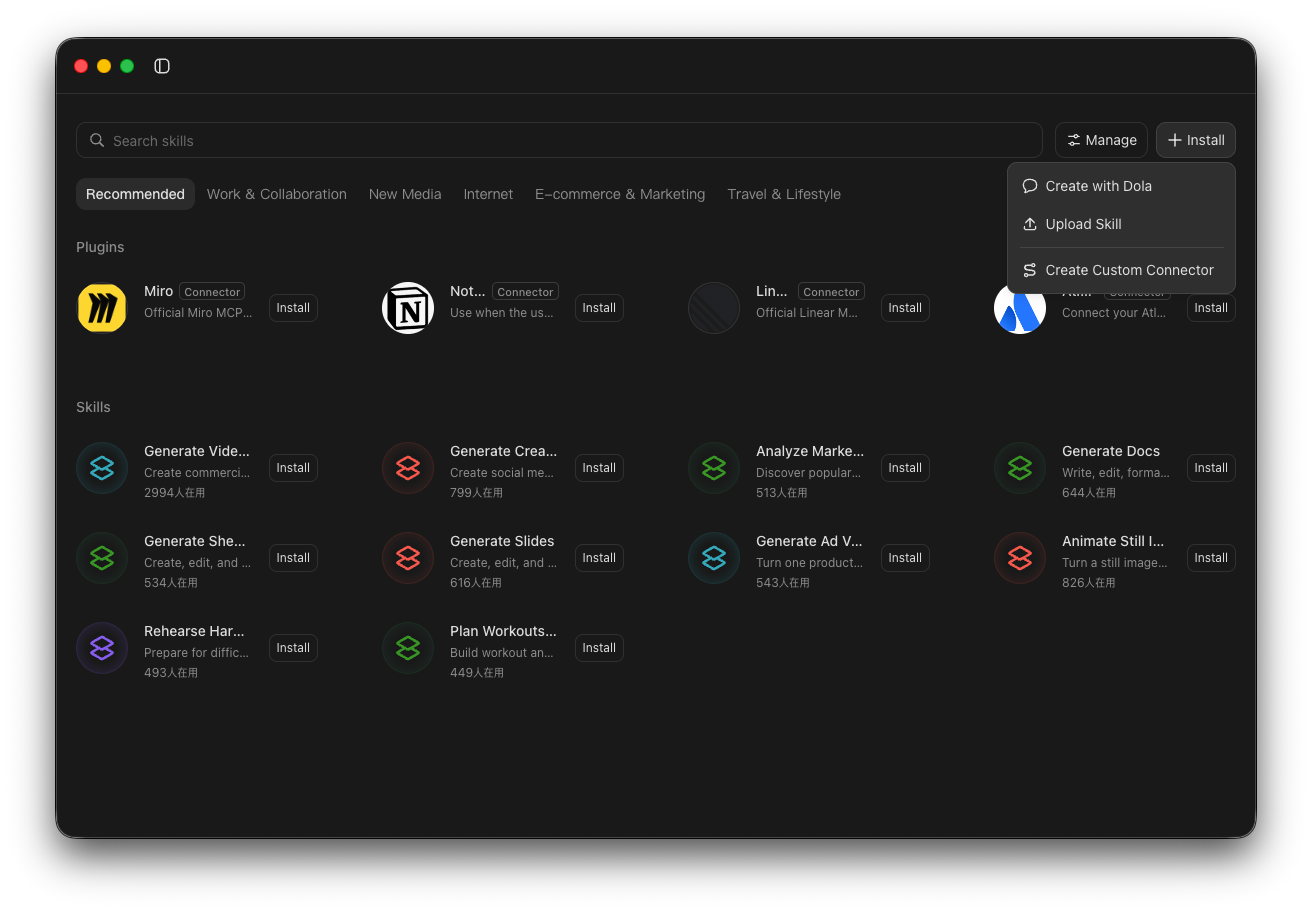
- Open Skills and click Install.
- Select Create Custom Connector.
- Enter these values:
| Field | Value |
|---|---|
| Server name | weppy-roblox-mcp |
| Transport type | STDIO |
| Instruction | npx |
| Parameter 1 | -y |
| Parameter 2 | @weppy/roblox-mcp@latest |
| Environment variables | Leave empty |
Add the two parameters as separate rows.
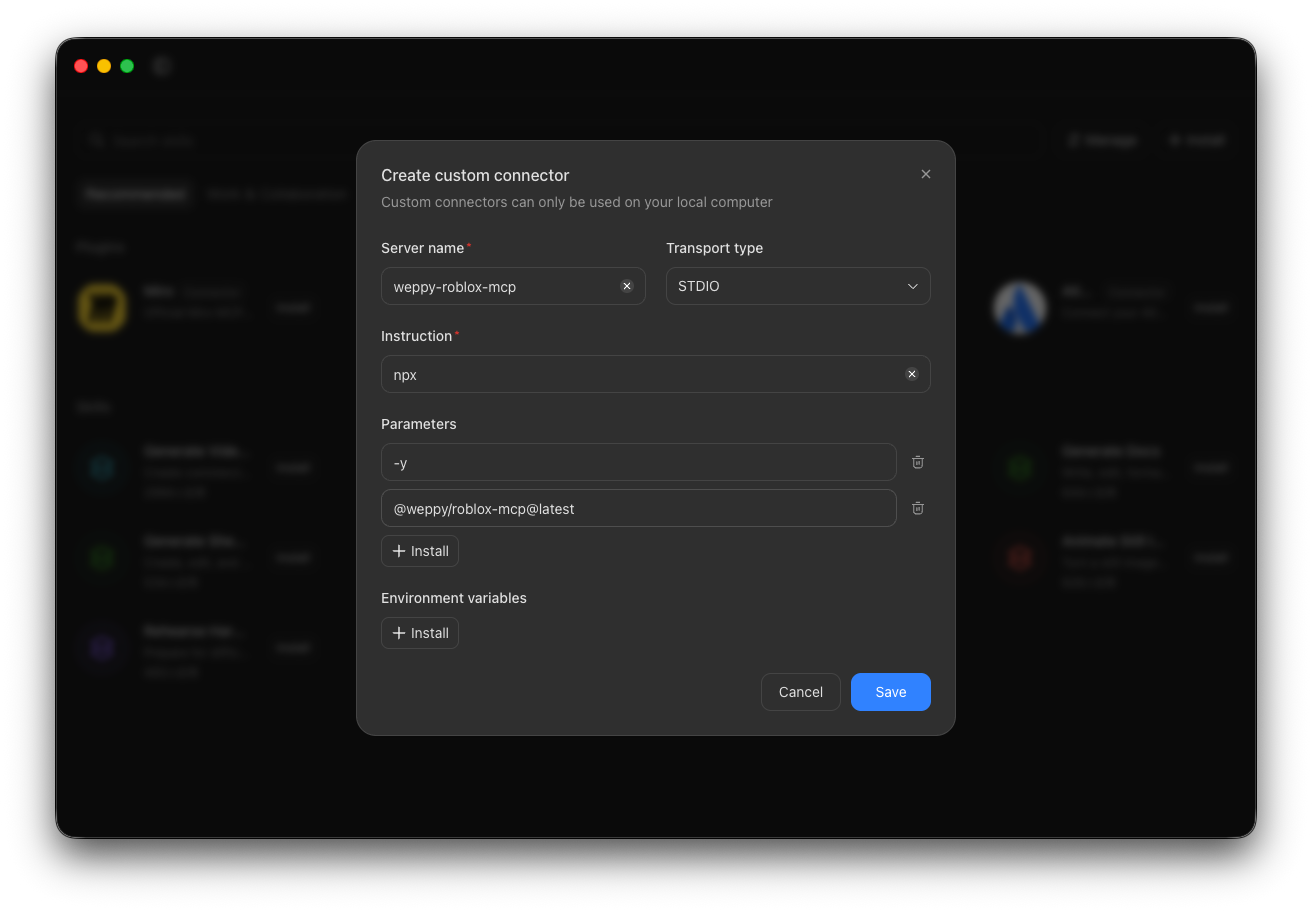
macOS and Windows
The connector fields above are the same on macOS and Windows. The screenshot was captured on macOS, but the menu path and values also apply to the current Windows desktop app.
After installing or updating Node.js, completely quit and reopen Dola so its Local computer environment can find npx through PATH. Before saving the connector, check in Terminal or PowerShell:
npx -y @weppy/roblox-mcp@latest --versionIf the command fails, repair the Node.js installation or PATH, then restart Dola before continuing.
- Click Save.
- Open Manage → Connectors, find
weppy-roblox-mcp, and click Install.
3. Start MCP and Connect the Studio Plugin
- Open a new Pro chat and select Local computer.
- Open Connectors and enable
weppy-roblox-mcp. - Wait for the MCP server to start. On its first run, it installs the WEPPY Roblox Studio Plugin automatically.
- If Roblox Studio was open, quit it completely and reopen it.
- In Roblox Studio, select Plugins → WEPPY → Connect.
4. Verify the Connection
Ask Dola:
Check the WEPPY connection and tell me the name of the open Roblox Studio target. Do not change anything.A successful check returns the current Roblox Studio target name. You can also open http://127.0.0.1:3002/dashboard and check Connection for both Dola and Studio.
Optional: Upload Workflow Skills
Dola can upload a local SKILL.md file, a ZIP, or a folder containing SKILL.md.
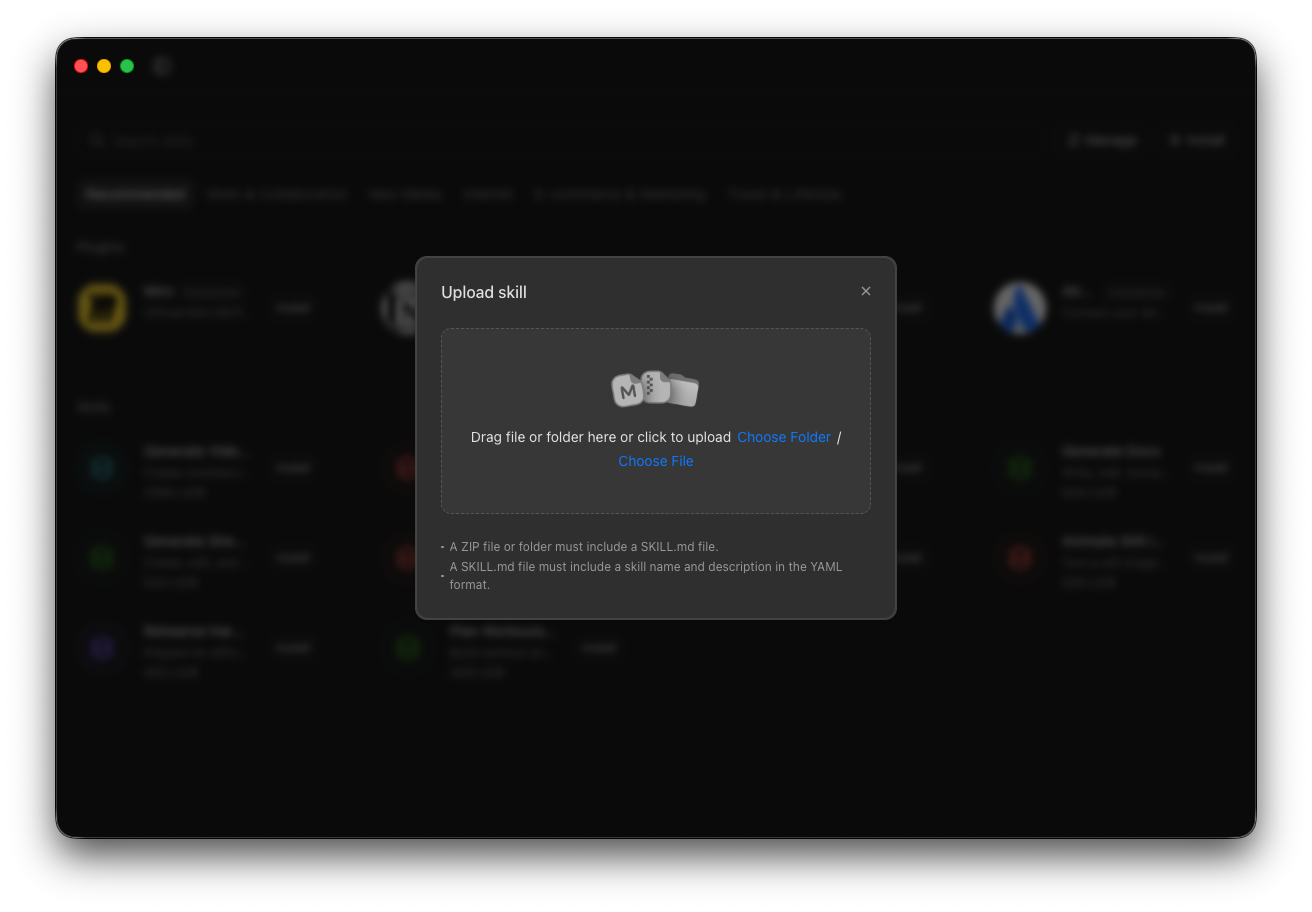
This is optional and does not create the MCP connector. Dola cannot install the public WEPPY AI Agent Plugin directly from its GitHub marketplace URL; the Custom Connector above is still required.
To reuse a WEPPY workflow skill, download and extract the official repository, then upload one individual folder at a time from plugins/weppy-roblox-mcp/skills/<skill-name>/. The plugin root and the parent skills/ folder are not Dola plugin packages. Dola may show Reviewing for security after upload; wait for that review before using the skill.
Troubleshooting
Local computer not set up
Finish Dola’s Local computer preparation before changing the WEPPY connector. This message occurs before Dola launches npx.
Pro or Local computer is missing
Update Dola, open Settings → Latest Configuration → Get Configuration, and restart the app. If the options are still missing, your current account or region cannot use a local Connector.
Connector does not appear after saving
Open Skills → Manage → Connectors and click Refresh. Confirm that weppy-roblox-mcp appears before clicking Install.
Connector starts but Studio is unavailable
- Open Roblox Studio and select Plugins → WEPPY → Connect.
- Confirm that the WEPPY MCP Server and Studio Plugin versions match.
- Open
http://127.0.0.1:3002/dashboardand check Connection.
Connector does not start
Check the public package directly in Terminal or PowerShell:
npx -y @weppy/roblox-mcp@latest --versionDola is a manual setup path. It is not included in WEPPY’s automatic installer or GitHub marketplace plugin support.